Alert Settings
Configuring push alert channels for blocks and state changes in Lockdown.
Overview: In Lockdown, the kernel blocks any execution, file access, or network connection not on the allowlist — whether or not anyone is connected to the Dashboard. Without alerts, a blocked program fails silently. Alerts notify you of these blocks and of state changes the moment they happen. On a stable system with a complete allowlist, alerts are rare — most weeks you receive none at all. An alert means something genuinely unexpected happened.
For fleet and enterprise scale
Single-host setup is on this page (Dashboard → Alert Settings, Phase 6). For production fleets and compliance programmes, use the dedicated guides:
- SIEM and Fleet Integration — Syslog, webhook, and status JSON for Splunk, Elastic, PagerDuty, and similar tools. The recommended path when you manage many servers without per-host TUI toil.
- Central Policy Management and External Control — Drive allowlist policy from Ansible, Terraform, ServiceNow, GitOps, and custom automation; consume syslog, JSONL approval logs, status.json, and webhooks for central visibility.
When alerts fire
Alerts are a push channel for blocks and state changes that warrant immediate attention. They are not a secondary log stream and not a replacement for the Dashboard.
Alerts are suppressed entirely in Setup Mode. Setup Mode is a high-volume observation phase — logging everything without blocking. Alerting during this phase would produce constant noise before the allowlist is complete. Alerts become active only when Lockdown is active.
Configuring alerts
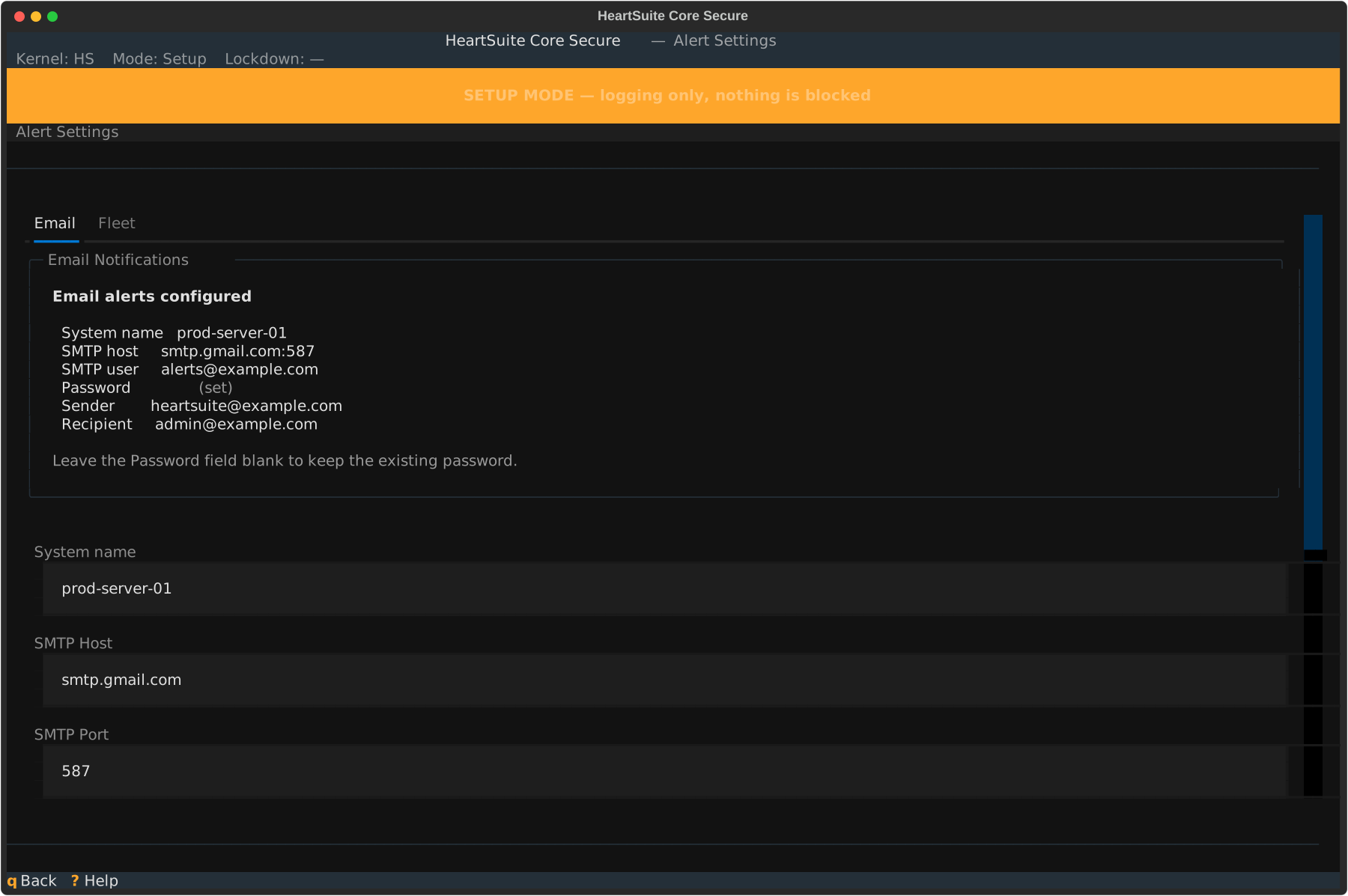
From the Dashboard, select Alert Settings ([e]). Alert Settings has two tabs: Email and Fleet.
Email tab
Configure SMTP credentials to receive email alerts directly. Required fields:
- Node ID — defaults to the system hostname; set a recognisable identifier (e.g.,
prod-web-03) so email subjects immediately identify the source machine when managing multiple servers - SMTP server and Port (default 587)
- Sender and Recipient addresses
- Password (masked on entry; never displayed after saving)
Select Save to store the configuration. Root Lock by HeartSuite validates all fields but does not attempt a live connection at save time. Select Test to send a test email — this is the only moment where SMTP connectivity is verified. If the test fails, the exact SMTP error code is shown:
Test email failed: [535 Authentication credentials invalid]

Check your credentials and try again. No alerts have been sent.
Once configured, the tab shows current settings with the password displayed as (set). Select Edit to modify — the password field is always blank when editing. You must re-enter the password to prevent credentials from appearing in the terminal scroll buffer.
Fleet tab
Configure syslog and webhook delivery for fleet and SIEM integrations. All channels are independent — enable any combination.
Syslog — A toggle (Enabled/Disabled). When enabled, Root Lock by HeartSuite writes all alerts to the system log via /dev/log, using the heartsuite-alert ident, LOG_AUTH facility, and LOG_WARNING severity. No additional configuration is needed on the Root Lock by HeartSuite node. After enabling, the Alert Settings provides an rsyslog forwarding rule example for your SIEM.
Verify syslog delivery with:
journalctl -t heartsuite-alert --since "1 minute ago"
To forward to a SIEM, configure an rsyslog output rule in /etc/rsyslog.d/heartsuite.conf. See the rsyslog omfwd forwarding module documentation for forwarding syntax, and your SIEM’s own documentation for the receiving end:
Webhook — Enter an HTTPS URL. Root Lock by HeartSuite POSTs a JSON payload to this URL on every alert. HTTP (non-TLS) URLs are rejected. Example payload:
{
  "node_id":    "prod-web-03",
  "event_type": "new_program_blocked",
  "timestamp":  "2026-03-31T14:22:00Z",
  "mode":       "Lockdown",
  "lockdown":   false,
  "paths":      ["/tmp/dropper", "/tmp/payload"],
  "count":      2
}
To receive this payload, create an integration in your incident management tool and paste the endpoint URL into the Webhook field:
Status JSON — A passive monitoring surface at ~/.cache/heartsuite/status.json, updated every 60 seconds. Ansible, Nagios, and Zabbix can read this file via SSH pull. No configuration required — always active when the alert daemon is running. This is read-only; it does not push notifications.
Tip
At fleet scale, syslog is the primary integration path: enable syslog on all nodes, forward via rsyslog to your SIEM, and alert centrally from the SIEM’s own rule engine. Webhook covers incident management tools (PagerDuty, OpsGenie). Status JSON covers Ansible health checks. Email is for single-machine deployments or as a supplementary channel.
For production examples (Filebeat/Elastic, rsyslog forwarding, webhook targets, verification commands) and the “scale path for larger teams” guidance, see the dedicated SIEM and Fleet Integration page. That page also covers using policy and posture data for tables of the current allowlist, risk signals, and posture views in Kibana/Elastic.
For using your existing central tooling (Ansible, Terraform, GitOps, ServiceNow, custom scripts) to own and apply allowlist policy at scale — with pre-seeding, harvest, and consumption of status.json / JSONL approval logs / syslog / webhook — see Central Policy Management and External Control. HeartSuite is designed to be driven by your control planes; the Dashboard is the single-host operator surface.
When Phase 6 is complete — at least one push channel configured — the Dashboard marks Phase 6 as complete and unlocks Phase 7 (Lockdown).
What triggers an alert
Administrative state changes
These alerts fire immediately on every configured channel, regardless of accumulation windows or digest mode:
| Alert | When it fires |
|---|
| Mode switch (Setup → Lockdown or Lockdown → Setup) | Immediately on mode change |
| Lockdown activated or deactivated | Immediately on state change |
| New allowlist file pushed while Lockdown is active | On detection |
Blocks in Lockdown
These blocks apply a threshold filter and are active in Lockdown only:
| Block | Trigger condition |
|---|
| Previously unseen program blocked | A program path appears in the denial log that has never appeared in any prior log session |
| Network burst to new destinations | A single program generates blocked connections to previously unseen destinations within a 2-hour window |
| Critical file version created outside maintenance | A new backup version is created for a file under /etc/, /bin/, /usr/bin/, /sbin/, /lib/, or /usr/lib/ while in Lockdown with no maintenance window open |
Never alerted under any circumstances:
- Anything in Setup Mode
- Repeated blocks of the same program–destination pair already seen in the current session
- File version activity under
/tmp/, /var/tmp/, or /dev/shm/ - Dashboard sessions opened or closed
- Successful allowlist approvals
How alerts are delivered
Email — 5-minute accumulation window
Blocks are grouped before delivery. A dropper that installs 40 payloads in 90 seconds produces one email — “40 previously unseen programs blocked in 90 seconds” — not 40 individual messages. Volume and velocity are the attack signal; 40 separate emails fragment that signal into noise.
- The 5-minute window starts on the first block of a given type
- Additional blocks of the same type within that window are added to the pending bundle
- At window close, one email is dispatched covering all accumulated blocks
- Blocks of different types accumulate independently — a network burst does not delay a file modification alert
Digest mode: If more than 3 block alerts are dispatched within a single hour, Root Lock by HeartSuite switches to digest mode for the remainder of that hour. All further blocks are queued and delivered as one digest email at the hour’s end. Administrative state changes are never held — Lockdown activations and state changes are always delivered immediately.
The 5-minute window and hourly cap are fixed, not user-configurable.
Syslog and webhook emit every alert immediately, without grouping or windowing. SIEM platforms (Splunk, Elastic) and incident management tools (PagerDuty, OpsGenie) apply their own correlation and deduplication — grouping alerts before they reach these systems removes information they need.
Note
Alerts begin flowing only after Lockdown is activated. If a configured channel appears silent during Setup Mode, that is expected — not a misconfiguration.
With at least one push channel configured, Phase 6 is complete and the Dashboard unlocks Phase 7. Follow the Suggested Next Step to activate Lockdown (prep with per-panel actions/opt-outs before YES).
1 - SIEM and Fleet Integration
Connect Root Lock by HeartSuite to your existing SIEM, observability platforms, and incident management tools. The recommended scale path for teams managing many servers without per-host TUI toil.
Overview: Root Lock by HeartSuite integrates with your existing SIEM, EDR, and observability stack via syslog (journald/rsyslog) and webhook. This is the scale path for larger teams: configure once (in the Dashboard under Alert Settings → Fleet tab) and let your central tooling handle monitoring, correlation, and alerting. There is no requirement to run the TUI on every host for day-to-day fleet visibility.
The raw enforcement decisions and higher-level alerts are emitted in real time. SIEM platforms receive the full picture; incident tools receive actionable events.
Syslog (recommended for SIEM ingestion)
When the Fleet tab “Syslog” toggle is enabled, every alert and every kernel-level enforcement decision is written to the local journal (ident heartsuite / heartsuite-alert).
Filebeat / Elastic (or any rsyslog-compatible shipper)
# filebeat-heartsuite.yml (adapt to your existing stack)
filebeat.inputs:
  - type: journald
    id: heartsuite-enforcement
    include_matches:
      - "SYSLOG_IDENTIFIER=heartsuite"
output.elasticsearch:
  hosts: ["https://your-elastic:9200"]
  # username, password, ssl.* etc. from your existing config
logging.level: warning
One ingest configuration works for Splunk, QRadar, Graylog, Loki (via promtail), etc. Both the per-decision enforcement stream and the aggregated alert events flow under the same tag.
Pre-flight check on the host:
filebeat test config && filebeat test output
Direct rsyslog forwarding
Create /etc/rsyslog.d/heartsuite.conf:
:programname, isequal, "heartsuite" @@your-siem-host:514
# Use @ for UDP or the TLS modules for production
Then:
sudo systemctl restart rsyslog
journalctl -t heartsuite --since "1 minute ago"
Enter a valid HTTPS URL in the Fleet tab. HeartSuite posts a compact JSON payload on every alert (immediate delivery, no batching on our side — let your receiver deduplicate).
Example payload:
{
  "node_id":    "prod-web-03",
  "event_type": "new_program_blocked",
  "timestamp":  "2026-03-31T14:22:00Z",
  "mode":       "Lockdown",
  "lockdown":   true,
  "paths":      ["/tmp/dropper", "/tmp/payload"],
  "count":      2
}
Supported targets (paste the URL and any required key into the Fleet tab):
- PagerDuty Events API v2
- OpsGenie Incoming Webhook
- Slack Incoming Webhooks
- Generic HTTPS JSON receivers
Use the “Test Webhook” button in the UI to validate delivery.
Status JSON (pull-based monitoring)
A passive, always-on snapshot is written every 60 seconds to ~/.cache/heartsuite/status.json (world-readable when the alert daemon runs).
Fields of particular interest for health checks:
mode, is_hs_kernel, lockdown, daemon_okpending_* counts (non-zero in Lockdown usually indicates something needs investigation)- Per-channel
last_*_error objects
Tools that can consume it directly:
- Ansible facts / custom modules over SSH
- Nagios / Icinga / Zabbix (SSH or file checks)
- Any script that
cats or jqs the file on a schedule
No configuration is required on the HeartSuite side.
Policy and posture data in Elastic and Kibana
In addition to the enforcement and alert streams, HeartSuite can emit structured policy and posture data. This includes snapshots of the current allowlist together with periodic reports of the host’s protection posture. When ingested into Elasticsearch, this data supports views of the allowlist across your fleet.
You can use it for:
- Tables of approved programs along with their exact file and network grants.
- Summaries such as counts of programs, broad-write risks while locked down, and reporting hosts.
- Detecting drift by comparing the stable
record_hash across snapshots. - Filtering for higher-risk entries using fields such as
risk_level, has_broad_write, has_network_grant, and lockdown_active_at_capture.
The data works with visualization tools in Kibana and similar platforms:
- Key fields for each program and its grants are directly available for tables and metrics.
- Grant details remain accessible for further exploration.
This view complements the host Dashboard and TUI: use the Dashboard for deliberate changes, review queues, and sealing on individual hosts. Use the central view for scanning, filtering, and correlating posture and the allowlist at fleet scale.
Production path on real hosts
On production hosts, enable the policy and posture export option in the Fleet tab of Alert Settings. Ship enforcement and alert streams via syslog or Filebeat as described above. Ingest into your existing Elasticsearch cluster and build Kibana dashboards with your standard security, retention, and access controls. No separate HeartSuite download is required for this path.
For lab, evaluation, and customer demos, HeartSuite offers tools/kibana-bridge/: an optional disposable Docker stack (Elasticsearch, Kibana, and a small ingest receiver) that turns HeartSuite telemetry (apo_change, heartbeats, enforcement) into policy-centric Kibana views. It is not installed by heartsuite-install.sh; request an evaluation kit from support@heartsecsuite.com or use the materials included with your coordinated release delivery.
The bridge is a read-only insight plane that complements syslog enforcement streams. It does not replace them and is not required for production. Typical views include:
- A living allowlist table (one row per
program_path with grant counts, risk_level, has_broad_write, has_network_grant, and related fields). - KPI-style posture metrics (policy counts, broad-write risk while locked down, high-grant surface, recent blocks).
- Drift detection by comparing stable
record_hash values across snapshots. - Enforcement correlation for drill-down alongside policy rows.
The stack is localhost-only, security-disabled, and throwaway (docker compose down -v wipes volumes).
Versus tools/siem-test/: These are sibling evaluation fixtures with different purposes (both available on request, not on production hosts):
| Fixture | Purpose |
|---|
tools/siem-test/ | Alert channel validation (syslog, email, webhook). Optional Kibana is for eyeballing raw text events. |
tools/kibana-bridge/ | Policy-surface visibility in Kibana (tables, KPIs, risk filters, record_hash drift). Uses richer telemetry payloads. |
They can run side by side on the same machine (different ports). Neither fixture is installed to /.hs/sys on hosts.
Quickstart (evaluation):
cd tools/kibana-bridge
docker compose up -d
docker compose run --rm setup
# Open http://localhost:5601 (or http://127.0.0.1:5601)
After setup, Kibana includes preconfigured data views:
- HeartSuite Policies — primary view for the living allowlist table (Lens tables, drift filters).
- HeartSuite Events — raw telemetry and event drill-down in Discover.
An optional imported dashboard, HeartSuite - Policy Overview, may also be present when saved objects are bundled with your checkout.
To feed live data during lab work, enable Fleet tab export on a host and forward telemetry to the bridge ingest receiver, or ingest exported policy data into your production Elasticsearch using the same field model. Setup detail is included in the evaluation kit README shipped with tools/kibana-bridge/.
Pairing with Ansible central policy
The exported policy data model pairs naturally with Ansible (or Terraform/GitOps) central policy management: curate one allowlist in your repo, push via the heartsecurity.root_lock Ansible role, batch_record_add.py, or hs-manage-allowlist, and use Kibana tables, KPIs, and record_hash for fleet visibility and drift detection. The bridge (or your production Elasticsearch deployment) is the read and visibility side; your control plane remains the write path.
See Central Policy Management and External Control for Ansible role variables, seed application, and harvest patterns.
Verification commands (run on the HeartSuite host)
# Recent alerts and enforcement decisions
journalctl -t heartsuite --since "10 minutes ago"
journalctl -t heartsuite-alert --since "10 minutes ago"

# Status snapshot (for pull monitors)
cat ~/.cache/heartsuite/status.json | jq .
Relationship to the Dashboard
All channels are configured in the single Alert Settings screen ([e]). The “Fleet” tab is the central place for SIEM/webhook/syslog + status. Email remains available as a supplementary or low-volume channel.
At fleet scale the recommendation is clear: syslog for the SIEM, webhook for incident response platforms, and Status JSON for infrastructure-as-code health checks. The Dashboard remains the place for initial setup, exception review, and maintenance — not for ongoing fleet monitoring.
Policy management is the inbound complement: your central systems curate and apply allowlists via the shipped CLI tools, pre-seeding, and automation patterns. See Central Policy Management and External Control.
Once at least one push channel is configured, Phase 6 (Alert Settings) is complete and you can proceed to Lockdown.
For the UI configuration steps in detail, see the parent Alert Settings page.
2 - Central Policy Management and External Control
Drive allowlist policy from your existing enterprise control planes (Ansible, Terraform, ServiceNow, and custom automation) and consume rich export data for central visibility and auditing at fleet scale. The recommended path for teams that own policy in their own tooling.
Overview: HeartSuite is designed to be driven by your existing central tooling. The Dashboard is the operator experience for a single host; enterprises use their control planes to manage policy and observe at scale.
There is no built-in multi-host push from a HeartSuite server. Each host enforces its own allowlist, and Lockdown seals that allowlist on the device. Policy is applied per-host by your automation, with rich export surfaces for central consumption and attribution. This model lets you keep ownership of policy curation, change approval, and fleet-wide visibility inside the tools you already run (Ansible, Terraform, GitOps repositories, ServiceNow, Splunk, Elastic, custom orchestration).
The subscription activation step that enables Lockdown remains a per-host entitlement check. The content of the policy itself can be fully external.
Policy curation in your central systems
A central system (CMDB, Git repository as source of truth, ITSM workflow, or custom script) owns the authoritative list of approved programs, file-access paths, and network destinations.
- Generate or maintain policy as simple text lists (one absolute program path per line) or structured data that your automation can parse.
- Curate changes through your normal processes: code review in Git, change tickets in ServiceNow, or policy-as-code pipelines.
- For homogeneous fleets or golden images, pre-seed a known-good baseline allowlist at install or first boot. This accelerates onboarding compared to pure observation on every host.
- For varied or custom workloads, allow an initial observation window in Setup Mode on a representative host, harvest the resulting allowlist entries, review them centrally, and then push the approved set to the rest of the fleet.
Pre-seeding reduces per-host Dashboard toil for standard stacks while still requiring explicit approval of any deviation before Lockdown.
Applying policy from automation
Use the CLI tools shipped with every installation (documented in the Appendices and Batch Allowlisting Tools) to apply policy from your control plane:
hs-manage-allowlist — inspect current state, add or remove specific entries for programs, file paths, and network destinations.batch_record_add.py — bulk-seed programs from a plain-text list of paths (adds each with standard library and configuration directories).
Run these tools over SSH, via config-management agents, or as part of provisioning scripts. Your central system prepares the seed data or change set; the automation layer delivers and applies it to each target host.
Subscription activation (hs-activate-subscription) is still required on each host before Lockdown can be engaged — this is the entitlement step and remains local.
Examples for the primary integration patterns follow.
1. Ansible — playbooks for seeding and applying policy
HeartSuite provides an official declarative Ansible role (heartsecurity.root_lock) for fleet policy application and Lockdown transitions. It is modelled on linux-system-roles.selinux and ships with coordinated release materials; email support@heartsecsuite.com if you need the role package. On every installed host, the limited_tools Python API under /opt/heartsuite is the runtime integration surface the role uses. A shell-and-CLI alternative using batch_record_add.py and hs-manage-allowlist follows below for ad-hoc or legacy playbooks.
Official Ansible role: heartsecurity.root_lock
Overview: The role provides variable-driven, idempotent management of allowlist programs and mode transitions. It is modelled on linux-system-roles.selinux (and rhel-system-roles.selinux) so administrators familiar with RHEL declarative SELinux policy can apply the same playbook patterns to HeartSuite.
Requirements:
- HeartSuite already installed on managed hosts (the role does not install the product).
become: true — all operations are privileged.- Ansible >= 2.9.
- The role invokes the production Python API in
/opt/heartsuite (limited_tools via /opt/heartsuite/venv/bin/python3 and /opt/heartsuite/src).
Key variables (all prefixed hs_ to avoid collision with SELinux role variables):
| Variable | Purpose |
|---|
hs_state | Mode transition: secure or lockdown (synonyms). setup is informational only (no-op). Unset leaves mode unchanged. Calls switch_to_secure() with the same precondition gates as the Dashboard. |
hs_programs | List of absolute program paths to approve (uses apply_allowlist_seed() internally). |
hs_seeds | List of seed file paths, or literal inline paths when the entry is not an existing file. Seed files are plain text, one path per line; # comments and blank lines are ignored. Combine freely with hs_programs. |
Additional variables include hs_gather_status (default true, exposes hs_status fact), hs_purge / hs_purge_allowlist (currently emit a warning only — the scriptable surface is additive by design), and hs_python / hs_src_path overrides for non-standard install layouts.
Idempotency: All allowlist operations return CommandResult with kind == "noop" when an entry is already present. The role uses this for correct changed_when reporting, so repeated plays do not show spurious changes.
Minimal example playbook:
# heartsuite-root-lock.yml
- name: Configure HeartSuite allowlist and engage Lockdown
  hosts: heartsuite_fleet
  become: true
  vars:
    hs_state: secure
    hs_programs:
      - /usr/sbin/sshd
      - /usr/bin/python3
    hs_seeds:
      - /var/lib/ansible/heartsuite/seed.txt
  roles:
    - heartsecurity.root_lock
After switching to secure or lockdown, a reboot is typically required for full seal; the role does not reboot automatically. Register facts (hs_status, hs_apply_result, hs_switch_result) are available for assertions or subsequent tasks.
Python API alternative: For custom Ansible modules or non-Ansible automation, the same primitives are exposed directly via limited_tools: approve_program_path, apply_allowlist_seed, get_status, get_allowlist_programs, and switch_to_secure. These reuse the same gates and CommandResult semantics. The heartsecurity.root_lock role is the preferred declarative path; use the Python API when you need bespoke orchestration beyond the role variables.
Register playbooks as the mechanism that executes change records approved in your central system.
Shell + register alternative
Use Ansible to distribute seed files and invoke the batch or management tools with become: true:
# heartsuite-policy-apply.yml
- hosts: heartsuite_fleet
  become: true
  tasks:
    - name: Copy central program seed list
      copy:
        src: "policy/seeds/programs-{{ inventory_hostname }}.txt"
        dest: "/tmp/heartsuite-programs.txt"
        owner: root
        mode: '0600'

    - name: Apply baseline programs via batch tool
      shell: "/.hs/sys/batch_record_add.py /tmp/heartsuite-programs.txt"
      args:
        creates: "/.hs/sys/allowlist_applied_{{ inventory_hostname }}.stamp"

    - name: Apply targeted network and file deltas from central policy
      shell: |
        hs-manage-allowlist add -x /usr/bin/curl -n 93.184.216.34
        hs-manage-allowlist add -r /etc/ssl/certs -w /var/log/app
      # Idempotency and error handling left to your playbook

    - name: Record application in central audit
      shell: "hs-manage-allowlist list > /tmp/current-allowlist-{{ inventory_hostname }}.txt"
      delegate_to: localhost
      # Then copy or commit the harvest back to your policy repo
This pattern does not use CommandResult.kind == "noop" for changed_when; implement your own idempotency checks (for example creates, or register + conditional tasks).
2. Splunk / Elastic (and similar SIEMs) — ingesting for central dashboards and policy triggers
The primary use of Splunk and Elastic is consumption of the structured data streams (see SIEM and Fleet Integration). Once events are in the SIEM:
- Build dashboards showing per-node mode, pending counts (from status.json), block rates, and approval activity (from the JSONL approval log forwarded via syslog or other shipper).
- Build views of the current allowlist and associated risks from the structured policy snapshots and posture data, including tables of programs with grant counts,
risk_level, broad-write and network flags, and record_hash for drift detection. - Use SOAR playbooks or alert actions in the SIEM to trigger Ansible Tower / AWX jobs or Terraform runs that apply approved policy updates back to affected hosts.
- Correlate HeartSuite enforcement events with change tickets to close the audit loop.
Syslog is the recommended high-volume path for both the per-decision enforcement stream and higher-level alerts. For richer views of the allowlist and posture (tables, metrics, and correlation) see SIEM and Fleet Integration.
Store allowlist seeds and change manifests in the same Git repository as your infrastructure code.
- Use Terraform
local_file or templatefile to render per-host or per-role seed files from a central policy definition. - During
terraform apply, a remote-exec provisioner, local-exec that calls Ansible, or a custom provider runs the seed application and hs-manage-allowlist invocations on the new or updated instance. - Drift detection: scheduled jobs (or Terraform Cloud/Enterprise runs) harvest current state via
hs-manage-allowlist list or cat ~/.cache/heartsuite/status.json, compare against the repo, and open PRs or apply corrections. - Git history becomes the authoritative change record for policy; the on-host JSONL approval log provides the per-host attribution of when and by which uid/tty the change was executed.
This pattern works especially well for immutable or frequently reprovisioned fleets.
- Model allowlist additions, removals, or baseline updates as standard or emergency change requests.
- Approved changes update a central policy repository (Git, CMDB, or dedicated store) or directly enqueue an automation job.
- The automation (Ansible, scripts, or ServiceNow Flow Designer + MID server) applies the delta to the target hosts using the CLI tools above.
- On completion, the automation closes the change ticket and posts the resulting JSONL approval log excerpts (or a pointer to the SIEM record) as evidence.
This keeps policy changes inside the same approval workflow used for all other infrastructure changes.
5. Custom scripts and other configuration management (Puppet, Chef, Salt, etc.)
Any tool that can copy files and run commands as root on the target can drive policy:
- Puppet: a custom resource or exec that writes a seed list managed by Hiera or PuppetDB and then invokes
batch_record_add.py or hs-manage-allowlist. - Chef: a recipe that templates policy from a data bag and executes the CLI tools.
- Pure scripts (Python, Bash, or your language of choice) run from a central runner or cron on a bastion: query the authoritative policy store, compute the diff for each host (or use a node-specific tag), SSH in, and apply.
The dedicated JSONL approval log (with uid/tty attribution for each change) and the enforcement/alert syslog streams give you the same audit trail regardless of which tool performed the apply.
Consuming data for central visibility, auditing, and harvesting
All of the following surfaces are available without additional configuration once the daemon is running. They are the mechanism by which your central tooling observes state and reconstructs history.
Status JSON (~/.cache/heartsuite/status.json, updated every 60 seconds) — lightweight pull surface for health and pending counts. Use from Ansible facts, Nagios/Zabbix checks over SSH, or any scheduled collector. Key fields for fleet dashboards: mode, lockdown, is_hs_kernel, daemon_ok, pending_* counts, node_id. See the schema in the Appendices.
Dedicated JSONL approval log — persistent, append-only record of every allowlist change (program, file path, or network destination) with timestamp, uid, and tty. This is the primary artifact for change attribution and audit reconstruction. Forward it (or its directory) via your existing log shipper alongside the syslog streams.
Structured syslog streams — two real-time RFC 5424 streams under the heartsuite APP-NAME. One carries every kernel decision (enforcement: HS-PROG-DENY, HS-FILE-DENY, etc.). The other carries aggregated alerts (new_program_blocked, mode changes, etc.). A single rsyslog rule forwards both. Full configuration examples and Filebeat patterns are in the SIEM and Fleet Integration page.
Webhook — HTTPS POST of compact JSON alert payloads on every significant event. Configure the endpoint in Alert Settings; use for immediate routing into ServiceNow, PagerDuty, or your own policy-evaluation service.
Harvest current allowlist state — run hs-manage-allowlist list (or the equivalent Dashboard export) on a schedule or on demand and commit the output to your central policy repository. This closes the loop: central sees what is actually enforced on each host and can detect drift or feed the next baseline.
See Alert Settings for configuration of syslog and webhook (Fleet tab) and SIEM and Fleet Integration for production-scale ingestion patterns.
Relationship to the Dashboard and Lockdown
The Dashboard remains the right surface for one-off investigation, initial setup on a new host, and guided maintenance windows. At fleet scale, routine policy application and observation move to your central tooling.
Lockdown itself is still activated per host (after subscription activation and alert-channel prerequisites). Once active, the kernel and the immutable seal protect the applied policy exactly as they do for Dashboard-driven changes. Alerts for “new allowlist file pushed while Lockdown is active” fire on all configured channels, giving your central systems immediate visibility into any out-of-band modification.
For support with large-scale or custom automation patterns, contact support@heartsecsuite.com.