Overview: A program running without restrictions on a server can read any file, write anywhere, and connect to any destination. Root Lock by HeartSuite requires every program to be explicitly approved to execute, to access files, and to make network connections — each independently. Even a legitimate tool already on your allowlist — curl, python, a system utility — can only reach the files and network destinations its specific allowlist entry approves. The Dashboard and its review queues walk you through each approval, with full metadata and intelligent grouping to manage volume.
The three review queues
In Setup Mode, Root Lock by HeartSuite logs every program execution, file access attempt, and outbound network connection without blocking anything. These populate three review queues visible from the Dashboard:
- Programs queue (
[p]) — programs that attempted to execute - File Access queue (
[f]) — programs that attempted to read or write files - Internet Access queue (
[i]) — programs that attempted outbound connections
The Dashboard shows pending counts for each queue and provides a Suggested Next Step directing you to the queue that needs attention first.
The queues build on each other. File access and network violations are only recorded for programs that have already been approved in the Programs queue. A program making live network connections will not appear in the Internet Access queue until you have approved it in the Programs queue first. If Internet Access or File Access appears empty while you know the system is active, check whether the Programs queue still has pending items.
Working through a queue
Starting a review
The Dashboard displays pending counts for each queue. The Suggested Next Step directs you to the queue that needs attention first. Select a queue to begin reviewing.
Single-key actions
The footer shows the primary actions available at any point:
| Key | Action |
|---|---|
[a] | Approve |
[s] | Skip for now (defer without approving) |
[n] | Navigate to the next denied item — Lockdown only |
[?] | Explain — what this approval means |
[q] | Return to the Dashboard |
Two additional keys appear contextually, not in the footer:
| Key | When available |
|---|---|
[u] | Undo — available for 5 seconds after an approval; cancels the last approval and returns the item to the queue |
Metadata shown in review
Every review item displays metadata directly in the primary prompt — you do not need to press a key to see it. The fields shown include:
| Field | Description |
|---|---|
| Package | Package name and version from the distro database |
| Description | One-line package summary |
| Category | Package section (e.g., “editors”, “web”, “python”) |
| Maintainer | Package maintainer string |
| Homepage | Package homepage URL |
| Installed | Date the package was installed or last updated |
When a program has no entry in any package database, Root Lock by HeartSuite displays the raw file path with “(no package)” in the metadata fields. Missing metadata is never hidden — the absence of information is itself a signal.
Individual and grouped review
The review queues handle large volumes without requiring blind bulk approval. Volume is managed through intelligent grouping, not through approving things you cannot see.
Individual review
Each item is presented one at a time with full metadata. Example for a program execution:
Program attempted to execute:
/usr/bin/nano
Package:     nano 7.2-1 -- small, friendly text editor
Attempts:    3

This program has not been allowlisted.

[a] Approve execution
[s] Skip for now
[?] What does approving this mean?
Grouped review
Related items are grouped together (e.g., “847 file reads from /usr/lib/python3/”). Root Lock by HeartSuite shows a sample of the grouped items so you can confirm the grouping makes sense before approving.
Queue summary
When the volume of remaining items is large, Root Lock by HeartSuite presents a summary of what is ahead — total counts and a breakdown by program — before you begin reviewing. This is an orientation view, not an approval surface. Press [a] or [Enter] to proceed into individual review.
Review grouping and sort order are independent dimensions. A program in any group may appear in any grouping presentation. For example, a program with no package entry that generated 200 file reads would appear in the “Unknown origin” group (sorted first) but could be presented as a grouped review (because the items are groupable by directory).
Programs queue (Phase 2)
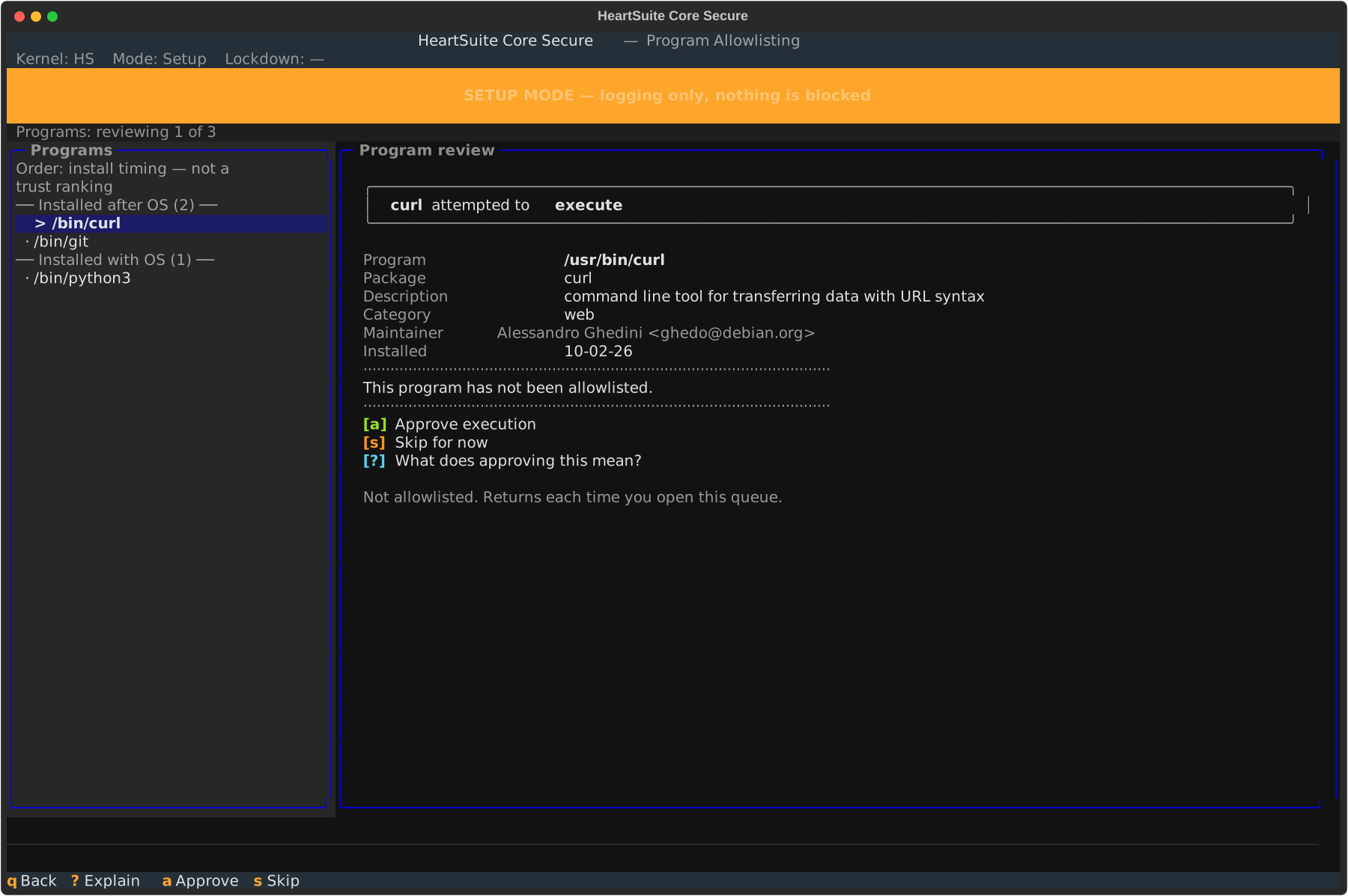
When a program executes without an allowlist entry, Root Lock by HeartSuite logs it. The Programs queue presents it for review.
What the groups mean
Programs are grouped into sections in the program list on the left. These groups determine the order items appear, placing items that need the most investigation first:
| Group | Meaning |
|---|---|
| Unknown origin | Program has no entry in any known package database. No metadata beyond the file path. |
| Installed after OS | Program belongs to a package installed after the OS provisioning date. |
| Installed with OS | Program belongs to a package whose install date matches the inferred OS provisioning date. |
| Root Lock by HeartSuite | File path falls under /.hs/. Origin is known; no investigation needed. Sorted last. |
The sort order is a workflow convenience that determines which programs appear first. It is not a trust ranking and does not affect the approval mechanism. Every program receives the same approve and skip options.
From the Dashboard, select the Programs queue ([p]). Each program is presented with its package metadata. Press [a] to approve execution or [s] to skip.
File Access queue (Phase 4)
Once you approve a program’s execution, Root Lock by HeartSuite begins logging every file it accesses. Programs typically access shared libraries, configuration files, and data files. The File Access queue presents them with two distinct permission levels:
- Read access — the default first approval level when approving a file read.
- Write access — always includes read access. Granted when approving a file write.
Example review prompt for a file read:
/usr/bin/python3 attempted to read:
/usr/lib/python3/dist-packages/apt/__init__.py
Program:     python3 3.11.2-1 -- interactive high-level object-oriented language
File owner:  python3-apt 2.6.0
Attempts:    12

This file access has not been allowlisted.

[a] Approve read access
[s] Skip for now
[?] What does approving this mean?
Example review prompt for a file write:
/usr/bin/journald attempted to write:
/var/log/journal/machine-id/system.journal
Program:     systemd 252-19 -- system and service manager
File owner:  systemd 252-19
Attempts:    3

This file access has not been allowlisted.

[a] Approve read and write access
[s] Skip for now
[?] What does approving this mean?
From the Dashboard, select the File Access queue ([f]).
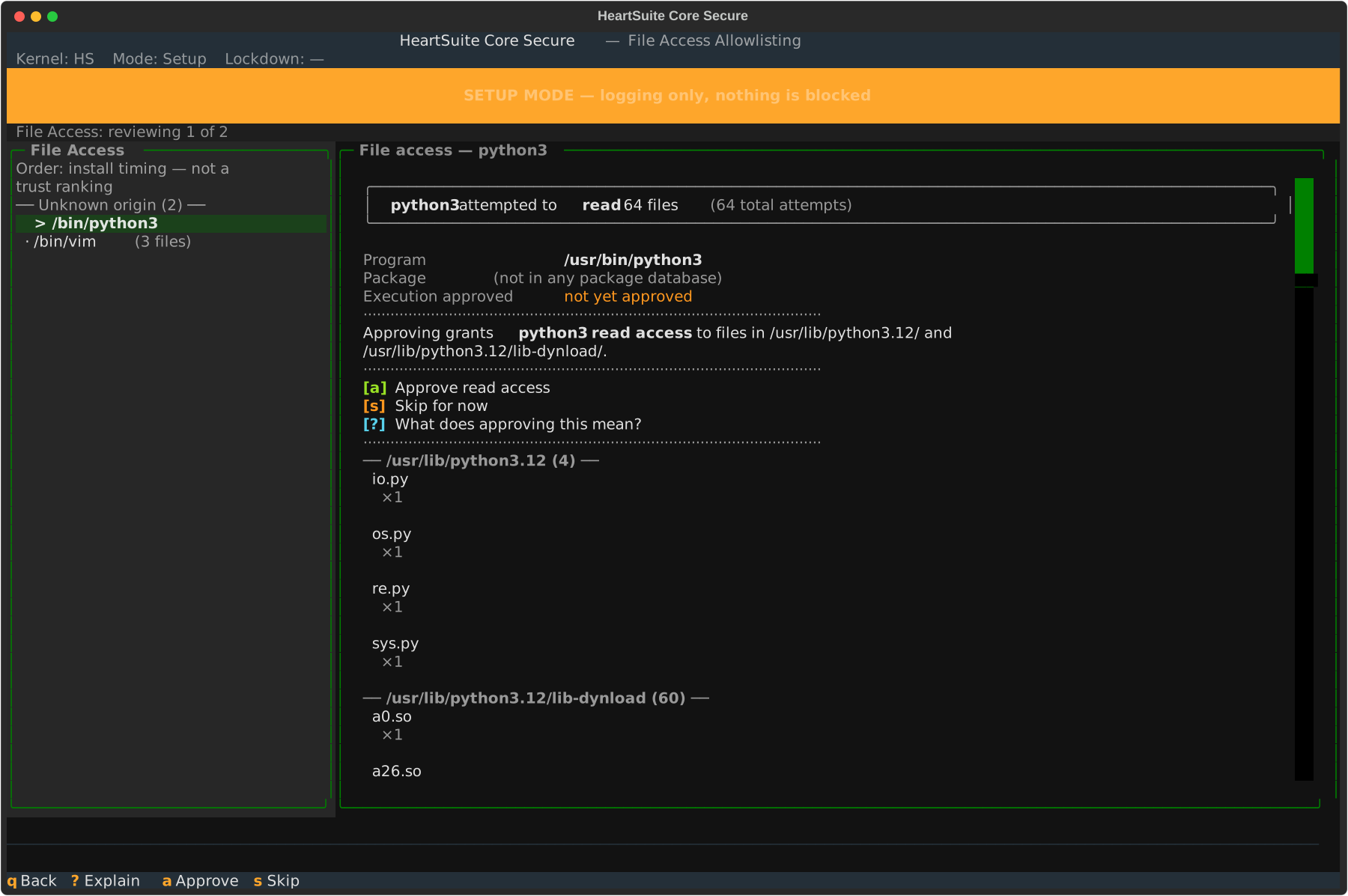
Grouped review handles the common case where a program reads many files from the same directory (e.g., /usr/lib/python3/). Root Lock by HeartSuite groups these together and shows a sample, so you can approve directory-level access without reviewing each file individually.
Some files shown in the queue may be labelled (no longer exists) in dimmed text. These are files the program accessed during Setup Mode that have since been deleted — temporary files, build artefacts, and similar. They are shown rather than filtered out because approving directory-level access now prevents the program from being blocked when it recreates the same file later. The summary line shows the breakdown: “8 exist, 34 no longer exist.”
Internet Access queue (Phase 5)
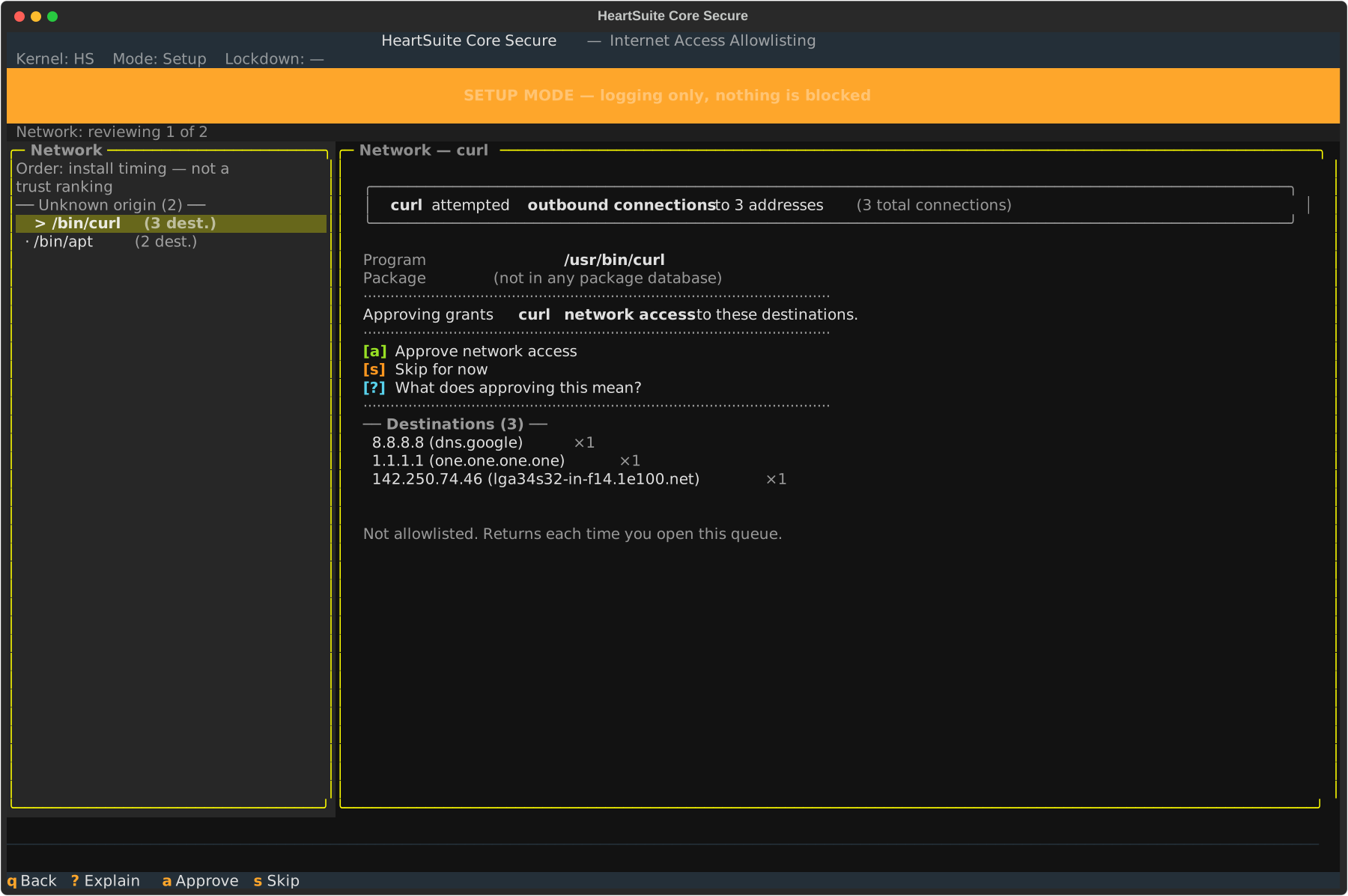
Programs that attempt outbound internet connections are logged with the destination IP address and reverse DNS hostname. The Internet Access queue presents these for review.
Example review prompt:
/usr/bin/curl attempted an outbound connection:
Destination: 93.184.216.34 -- example.com (Edgecast, US)
Program:     curl 7.88.1-10 -- command line tool for transferring data with URL syntax
Attempts:    7

This destination has not been allowlisted for this program.

[a] Approve this connection for /usr/bin/curl
[s] Skip for now
From the Dashboard, select the Internet Access queue ([i]).
Progress and completion
While working through a queue, a progress indicator shows your position:
Programs: reviewing 3 of 7 ───────────────────────────────
When a queue is empty:
All program events resolved.
Returning to Dashboard…
Allow several days to a week of observation in Setup Mode to capture activity from systemd timers, cron jobs, and infrequent services before activating Lockdown.
Review queues in Lockdown
In Lockdown the review queues are read-only. [a] and [s] do nothing — you cannot approve items while in Lockdown. The queues show denied items (actions Root Lock by HeartSuite blocked), not pending items awaiting approval.
Use [n] to navigate through denied items one by one. To approve a denied program, file access, or network destination, enter a maintenance period first via the Maintenance ([m]) — this switches to Setup Mode where the review queues become interactive again.
Denied items in Lockdown are a normal part of operation, not failures. A denied item means Root Lock by HeartSuite blocked something that was not on the allowlist. Review it to decide whether to approve it or leave it blocked.
CLI access for scripting and automation
For scripting and automation workflows that run without the Dashboard, hs-manage-allowlist provides a browser and editor for existing allowlist entries. See its built-in help:
# hs-manage-allowlist --help
The Dashboard is the supported path for normal use.
When the Programs queue (Phase 2) is empty, the Dashboard’s Suggested Next Step directs you to Phase 3: Script Launchers — or to Phase 4 (File Access) if launchers are not applicable. The Dashboard tracks which phases remain and always shows what needs attention next.