Advanced Configuration and Maintenance
How to perform maintenance safely on a Root Lock by HeartSuite system, from Setup Mode transitions to Lockdown recovery.
Overview: Every maintenance window is an attack window — in Setup Mode the kernel logs but stops blocking, or on the maintenance kernel Root Lock by HeartSuite is not loaded at all, while changes are made. These guides cover how to perform maintenance safely without leaving gaps an attacker can exploit. The Dashboard displays the current protection state — including Lockdown status — and provides the Suggested Next Step throughout maintenance.
Maintenance is a time period during which you temporarily step out of Lockdown to make changes. It is not a separate mode. Root Lock by HeartSuite has two modes: Setup Mode and Lockdown. During maintenance, you either switch to Setup Mode (the kernel logs but stops blocking) or boot the maintenance kernel (Root Lock by HeartSuite is not loaded at all) depending on whether the immutable seal is active — the Dashboard’s Maintenance ([m]) detects this automatically and guides you through the correct path.
For most maintenance — installing packages, applying patches, editing configuration — the correct path is switching to Setup Mode. That requires one reboot, stays on the Root Lock by HeartSuite kernel, and needs no GRUB interaction. Booting the maintenance kernel is only required when Lockdown+sealed is active.
The Maintenance appears only when the system is in Lockdown, Lockdown+sealed, or on the maintenance kernel. It is not shown in Setup Mode — because in Setup Mode, you are already in the maintenance-ready state and the Dashboard’s review queues and Suggested Next Step are the workflow.
In this section
- Protecting During Maintenance — Step-by-step guidance for maintenance windows, from the safety checklist through Lockdown recovery across two reboots.
- File Backup and Versioning — Automatic versioned backups that even root cannot reach under Lockdown — restore any earlier version of a file when needed.
- Cache Adjustment — Tuning the allowlist cache for servers with large numbers of concurrent programs.
- Restricting Kernel Module Loading — Limiting kmod’s access to specific modules for deployments where kmod is allowlisted.
- Updating HeartSuite — Apply a HeartSuite update bundle, including the two-reboot sequence and Lockdown considerations.
1 - Protecting During Maintenance
Securing your server during maintenance windows to prevent attacks.
Overview: Every maintenance window is an attack window — blocking is temporarily suspended, and anything an attacker can reach during that period is unprotected. Maintenance — such as installing packages, editing files, or applying updates — is the period during which you temporarily reduce Root Lock by HeartSuite’s protection to make changes. Grants can be narrowed at Lockdown activation time via per-panel actions/opt-outs on the prep shown before confirmation; the Dashboard’s Maintenance ([m]) guides you through the entire process, from safety preparation to re-engaging Lockdown (including restoring or re-approving as needed). The Maintenance appears only when the system is in Lockdown, Lockdown+sealed, or on the maintenance kernel — it is not shown in Setup Mode, because in Setup Mode you are already in the maintenance-ready state.
Most maintenance uses Option 1 below — a single reboot that stays on the Root Lock by HeartSuite kernel in Setup Mode. No GRUB interaction and no old kernel required. Option 2 (booting the maintenance kernel) is only needed when the immutable seal is active, which is the less common path.
Starting maintenance
From the Dashboard in Lockdown, select Maintenance ([m]). The Dashboard automatically detects whether the immutable seal is active and presents the correct path — you do not need to determine this yourself.
Safety checklist
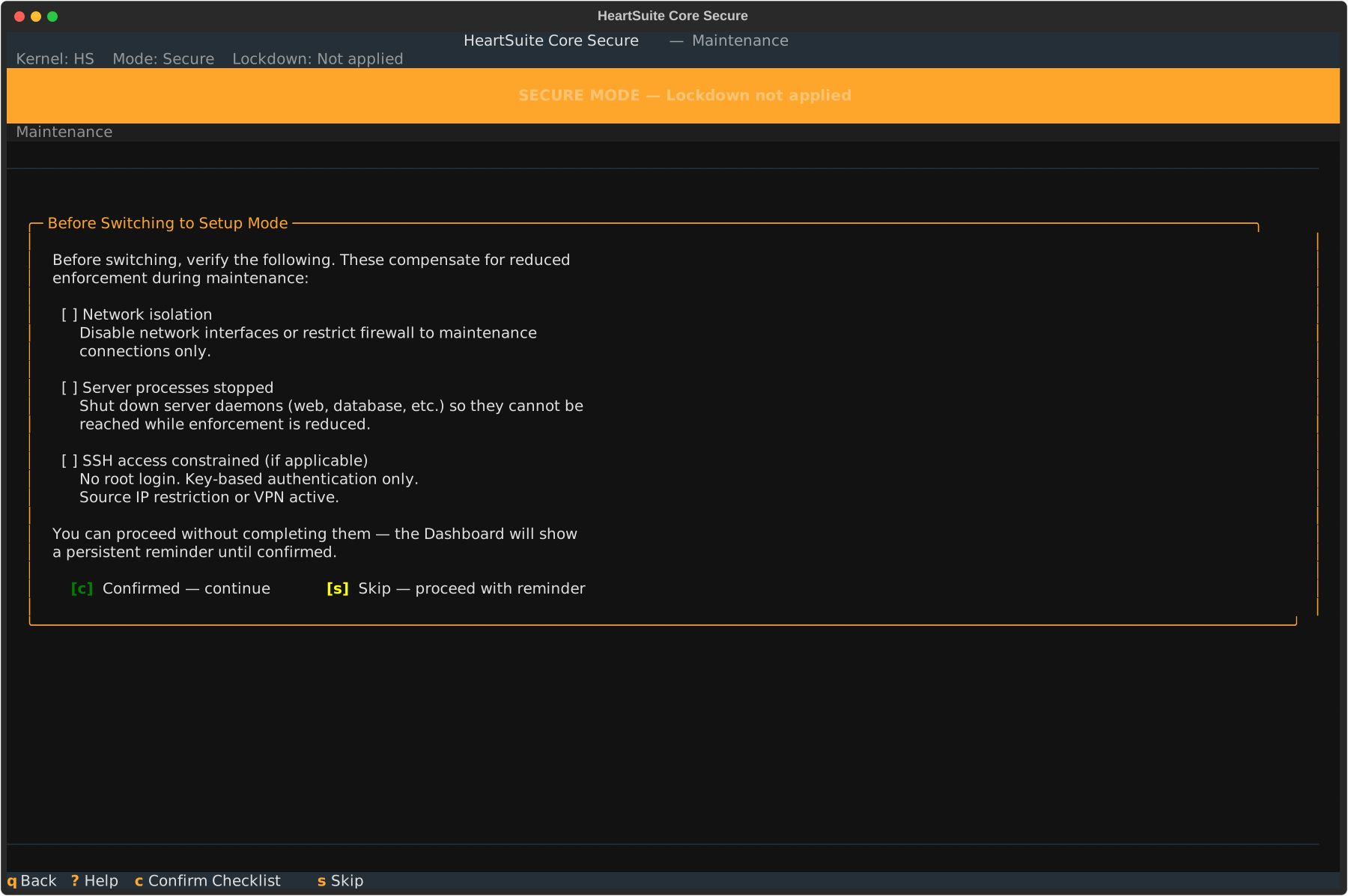
Before any mode change, Maintenance presents a safety checklist. The Dashboard auto-detects system state where possible and shows the status of each item:
- Network isolation — disable network interfaces or restrict firewall rules to prevent remote access during maintenance
- Server processes — shut down daemons (e.g., web servers) to close attack vectors
- SSH access — no root login, key-based auth only, source IP restriction
The Dashboard shows green checkmarks for items that pass and amber warnings for items that need attention. Press [c] Confirmed to proceed or [s] Skip to continue without completing the checklist. If you skip, the Dashboard displays a persistent reminder throughout the maintenance period — it does not disappear until you re-engage Lockdown.
Note
The safety checklist is more critical for the Lockdown path (Option 2), where Root Lock by HeartSuite will be completely absent. For the standard path (Option 1), Root Lock by HeartSuite continues logging and running backups.
Option 1: switch to Setup Mode (no Lockdown)
This is the standard maintenance path. The Root Lock by HeartSuite kernel stays active. Logging and backups remain fully operational.
After completing the safety checklist, the Maintenance explains what will change:
- Root Lock by HeartSuite switches from blocking to logging only
- The Root Lock by HeartSuite kernel remains active
- Backups continue running
- The existing allowlist is preserved
- New activity is logged, not blocked — it will appear in the review queues when you re-engage Lockdown
Type YES (case-sensitive) to confirm the switch. The Dashboard reboots to apply the mode change.
After rebooting, the Dashboard shows Setup Mode is active with a Suggested Next Step. If the safety checklist was skipped, a persistent reminder appears. Make your changes — install packages, edit configuration, update software. Root Lock by HeartSuite logs all new activity silently.
When finished, re-engage Lockdown from the Dashboard. New activity from the maintenance period appears in the review queues. Review and approve them through the standard allowlisting flow before Lockdown resumes.
Option 2: boot the Non-HS Kernel (Lockdown active)
Note
This path requires physical presence at the machine — a keyboard and monitor, a serial port, or your cloud provider’s serial console (AWS EC2 Serial Console, GCP Serial Console, Azure Serial Console, DigitalOcean Console). Confirm that access before you start.
When Lockdown is active, the Maintenance does not offer the Setup Mode switch. Instead, it explains the situation and guides you through a 3-step process. This is the most complex journey in the product — it involves two reboots, a kernel selection at GRUB where the Dashboard cannot guide you, and a period where Root Lock by HeartSuite is completely absent.
Step 1 of 3: boot Non-HS Kernel and remove immutable flags
After the safety checklist and typing YES to confirm, the Dashboard prepares you for the GRUB boot menu — the one moment where it cannot provide guidance. It shows the exact entry to select (Maintenance or vanilla Non-HS; do not select the branded HS / Root Lock by HeartSuite kernel). Press [r] to reboot.
The Dashboard saves your maintenance session state before rebooting. This state persists across reboots and kernel changes — the step counter (“Step X of 3”) follows you throughout the process.
After selecting the appropriate Non-HS / Maintenance entry from GRUB, the Dashboard resumes automatically on login. It detects the absence of the Root Lock by HeartSuite kernel module and adjusts its interface — actions that require the Root Lock by HeartSuite kernel are hidden entirely, not greyed out. The Dashboard shows:
- “maintenance kernel active. Root Lock by HeartSuite is not loaded.”
- “No blocking. No logging. No backups.”
- “Maintenance step 1 of 3: Remove immutable flags.”
Press [u] to remove the immutable flags set by Lockdown. After the flags are removed, the Dashboard presents the automatic Lockdown re-engagement choice:
[d] Disable automatic Lockdown re-engagement — the startup script will no longer apply Lockdown on boot. You can re-enable this later. This simplifies future maintenance.[k] Keep automatic re-engagement — Lockdown will re-apply on every Root Lock by HeartSuite kernel boot. Future maintenance will require this same process.
Both options carry equal weight — neither is recommended over the other. The choice depends on your operational needs.
Note
If you accidentally select the wrong kernel at GRUB (the Root Lock by HeartSuite kernel instead of the maintenance kernel), the Dashboard detects this and guides you to reboot and select the correct kernel.
Step 2 of 3: make your changes
The Dashboard transitions to the maintenance workspace:
- “Maintenance step 2 of 3: Make your changes.”
- “You are on the maintenance kernel. Root Lock by HeartSuite is not active. Changes made now will not be logged.”
Make your changes — install software, update packages, modify configuration files. When finished, press [f] to prepare the return to the Root Lock by HeartSuite kernel. The Dashboard pre-configures Setup Mode for the next boot.
Step 3 of 3: boot Root Lock by HeartSuite kernel and review
Select the branded Root Lock by HeartSuite (HS) kernel from GRUB. The Dashboard appears automatically, showing Setup Mode is active and displaying the maintenance step counter. Software installed during maintenance may generate new entries — these appear in the review queues. Review and approve them, then re-engage Lockdown from the Dashboard. If the immutable seal was previously active and you kept automatic re-engagement, Lockdown will re-apply on the next reboot.
Warning
The maintenance kernel provides no Root Lock by HeartSuite protection whatsoever. The safety checklist is critical for this path.
Manual recovery outside the Maintenance
When Lockdown makes files immutable using chattr +i, those flags are stored at the filesystem level and persist across reboots — including reboots to the maintenance kernel. If you attempt to modify a file that was made immutable during a previous Lockdown session, you will encounter an error such as “could not open file; errno:1.” The Maintenance’s [u] Remove immutable flags handles this automatically during Step 1 of the Lockdown path. For recovery outside the Dashboard, run HS_unlock.sh.
2 - Adjusting the Cache Size
How Root Lock by HeartSuite auto-tunes its allowlist cache, and when manual intervention is needed.
Overview: Root Lock by HeartSuite caches allowlist entries in kernel memory for performance — each cache slot holds one program. The Dashboard automatically expands the cache to match your allowlist size, so for most systems no tuning is needed. Manual adjustment is only relevant when the allowlist exceeds the kernel cache maximum of 255 entries.
Automatic cache expansion
On startup and every state refresh, the Dashboard compares the size of your allowlist against the current kernel cache size. If the allowlist is larger, the Dashboard silently expands the cache to fit — up to the kernel maximum of 255 entries. The minimum cache size is 10 entries.
This runs in the background on the Dashboard’s normal 60-second refresh cycle. You do not need to invoke any CLI tool, change any settings, or even know the current cache size — the Dashboard handles it whenever it loads or refreshes.
When the allowlist exceeds 255 entries
If your allowlist grows beyond 255 entries — unusual for most workloads, but possible on servers running many distinct programs — auto-expansion stops at the kernel maximum. The Dashboard logs a warning:
Allowlist has 312 entries but kernel cache max is 255; consider removing unused entries.
The Allowed ([a]) is the place to review and remove entries you no longer need. After pruning, the Dashboard’s next refresh fits the cache to your trimmed allowlist automatically.
CLI access for scripting and automation
For scripting and automation workflows that run without the Dashboard, hs-cache-size sets the cache to a specific size between 10 and 255:
The Dashboard is the supported path for normal use.
3 - Restricting Kernel Module Loading
How to limit kmod’s file access permissions to specific modules before Lockdown engages, for deployments where kmod is allowlisted.
Overview: Root Lock by HeartSuite does not add kmod, modprobe, or insmod to the allowlist during installation — in Lockdown, none of them can execute, and no additional configuration is needed for module loading on a standard deployment. If your hardware requires kmod at startup to load device drivers or filesystem modules, kmod must have an allowlist entry. In that case, restrict kmod’s file access permissions to only the specific modules it needs before engaging Lockdown. An allowlisted kmod with unrestricted file access can load any module on the system.
Default deployments: no action required
If kmod, modprobe, and insmod have no allowlist entries, Root Lock by HeartSuite refuses to execute them in Lockdown. No module-loading hardening is needed — skip this page.
When kmod is allowlisted
Some hardware configurations require kmod at startup to dynamically load drivers or filesystem modules the system needs to boot. Once kmod has an allowlist entry, it can execute — and without further restriction, kmod’s file access permissions determine which modules it can load.
The hardening step is to narrow those file access permissions to the specific module paths kmod legitimately needs. If kmod attempts to load a module outside its permitted paths, Root Lock by HeartSuite blocks the file access in Lockdown before the module can be read.
Restricting kmod’s file access permissions
Do this before engaging Lockdown. Once Lockdown is active, allowlist entries are sealed and cannot be modified without a maintenance window.
When kmod’s startup activity appears in the File Access queue ([f]) during Setup Mode, approve individual .ko file paths rather than directory-level access. Approving a directory grants kmod read access to everything under it — including modules not present during observation. Approving specific file paths limits kmod to exactly what it accessed during Setup Mode.
If kmod already has directory-level file access permissions, use hs-manage-allowlist to remove the broad entries and re-add specific paths. See hs-manage-allowlist --help for usage.
After narrowing kmod’s file access permissions, reboot and confirm the system starts normally with no kmod access denials in the review queues. Then activate Lockdown from the Lockdown button ([l]). If kmod still has directory-level access at that point, the Dashboard shows it in the review (as advisory) before confirmation. You can opt back in via [u] undo (priority after install) or adjust before typing YES (case-sensitive). See Mode Switching and Lockdown for prep actions.
Per-user shell profile coverage
Lockdown seals system-wide shell configuration — /etc/profile, environment defaults, and cron — preventing an attacker from planting scripts that run at the next boot and expand kmod’s permissions before Lockdown re-engages. Per-user profile files (~/.bash_profile, ~/.bash_login, ~/.profile, ~/.bashrc, ~/.inputrc) are not covered automatically because the correct set depends on your user configuration.
If your deployment requires coverage for specific user accounts, enable the commented-out entries for those users in HS_lockdown.sh before engaging Lockdown.
How Lockdown reinforces the restriction
After Lockdown engages, three layers protect against module-loading attacks:
- Allowlist entries are sealed — kmod’s allowlist entry cannot be modified while Lockdown is active. An attacker cannot add new module paths even with root access.
- Startup scripts are sealed — Lockdown seals system-wide shell configuration, systemd unit directories, and cron. Attackers cannot insert scripts that would run before Lockdown re-engages on the next boot and expand kmod’s permissions.
- Kernel-level block — Lockdown blocks new module loads at the kernel level, independently of the allowlist.
4 - Updating HeartSuite
How to apply a HeartSuite update bundle, including the two-reboot sequence and Lockdown considerations.
Overview: A HeartSuite update is delivered as a single self-extracting bundle (heartsuite-install.sh) that replaces the Root Lock by HeartSuite kernel and its userspace tools in one operation.
What an update changes
- The Root Lock by HeartSuite kernel (
vmlinuz-<version>-HeartSuite-<patch>) - HeartSuite userspace tools (
activate_HS, lockdown_HS, Secure Script Launchers, setup scripts) - The Dashboard files under
/opt/heartsuite/ - GRUB configuration, so the new kernel becomes the default boot target
It does not modify user data, the existing allowlist entries, or backup files. Root Lock by HeartSuite may add new allowlist entries if the new kernel encounters programs that were not running under the previous kernel.
Why two reboots are required
The running Root Lock by HeartSuite kernel cannot replace itself. The installer verifies this and aborts if it detects it is running on the Root Lock by HeartSuite kernel. An update therefore requires:
- A reboot from the Root Lock by HeartSuite kernel to the maintenance kernel.
- Running the installer on the maintenance kernel.
- A reboot back into the new Root Lock by HeartSuite kernel.
Root Lock by HeartSuite is not active while the maintenance kernel is running. Schedule updates during a planned maintenance window.
Before you begin
- Disengage Lockdown if it is active. Lockdown uses
chattr +i filesystem immutability on HeartSuite configuration files; the installer cannot replace them while Lockdown is engaged. From the Dashboard, open Maintenance ([m]) and follow the guided path to disengage. (Any grant narrowing done via per-panel actions/opt-outs during original activation will need re-review after update.) - Verify the bundle. Compare the SHA-256 of
heartsuite-install.sh against the published checksum before running it.
Update procedure
Place heartsuite-install.sh and heartsuite-install.sh.sha256 on the system, typically by scp into /root/.
Verify integrity:
sha256sum -c heartsuite-install.sh.sha256
Expected output: heartsuite-install.sh: OK
Reboot and select the maintenance kernel at the GRUB menu.
Log in as root over SSH or the serial console.
Run the installer:
bash heartsuite-install.sh
The installer applies the update and reboots automatically into the new Root Lock by HeartSuite kernel.
If new programs are encountered, Root Lock by HeartSuite reads the startup logs, adds the programs it finds to the allowlist, and reboots as needed (Phase 1). The Dashboard appears when this is complete.
Re-engage Lockdown from the Dashboard if it was active before the update.
If the update fails
If the new Root Lock by HeartSuite kernel does not boot, select the previous kernel from the GRUB menu. Physical or serial-console access is required for this step. Both the previous Root Lock by HeartSuite kernel and the maintenance kernel remain available as recovery entries. Contact HeartSuite support and include the contents of /var/log/heartsuite/install.log in your message — we’re happy to help you recover.
5 - File Backup and Versioning
Automatic backups for designated directories and version restoration to protect against malware.
Overview: Allowlisting controls what programs can run, but an approved program that malware takes over can still write files — ransomware running inside an approved process can encrypt whatever that process can reach. Modern ransomware targets backup systems first — shadow copies and backup agents are typically deleted before files are encrypted. Root Lock by HeartSuite automatically creates a versioned backup every time a file in a protected directory is written, and under Lockdown the kernel itself prevents any program from reaching those backups. No other program, including malware running as root, can read or destroy them. Versions are never automatically deleted.
Automatic versioning
Root Lock by HeartSuite monitors a list of protected directories. When any file in those directories (including subdirectories) is written, Root Lock by HeartSuite silently creates a new versioned backup before the write completes. This runs automatically in both Setup Mode and Lockdown — protection begins from first boot, before you have reviewed a single item.
Enterprise backup tools back up on a schedule — hourly, nightly, weekly. An attack that completes between backup windows has nothing to recover from. Root Lock by HeartSuite backs up on every write. There is no window. Other security products that offer rollback on Linux — including endpoint products with a rollback feature — rely on volume shadow copies or scheduled snapshots. The same gap exists: an attack that completes between snapshot intervals has nothing to recover from.
CVE-2024-40711 — Veeam Backup & Replication, unauthenticated RCE — shows the sharper problem: the backup product itself is the target. An attacker who reaches a Veeam host can execute code without authentication, destroy backups, then encrypt production files. Root Lock by HeartSuite’s backups have no running agent to exploit — under Lockdown, the kernel itself prevents any program from reaching them.
By default, /home is configured for backup. You can add or remove directories from the Dashboard’s Backup.
Configuring protected directories
From the Dashboard, select Backup ([b]). The Dashboard shows your current backup configuration — which directories are protected and when they were last backed up.
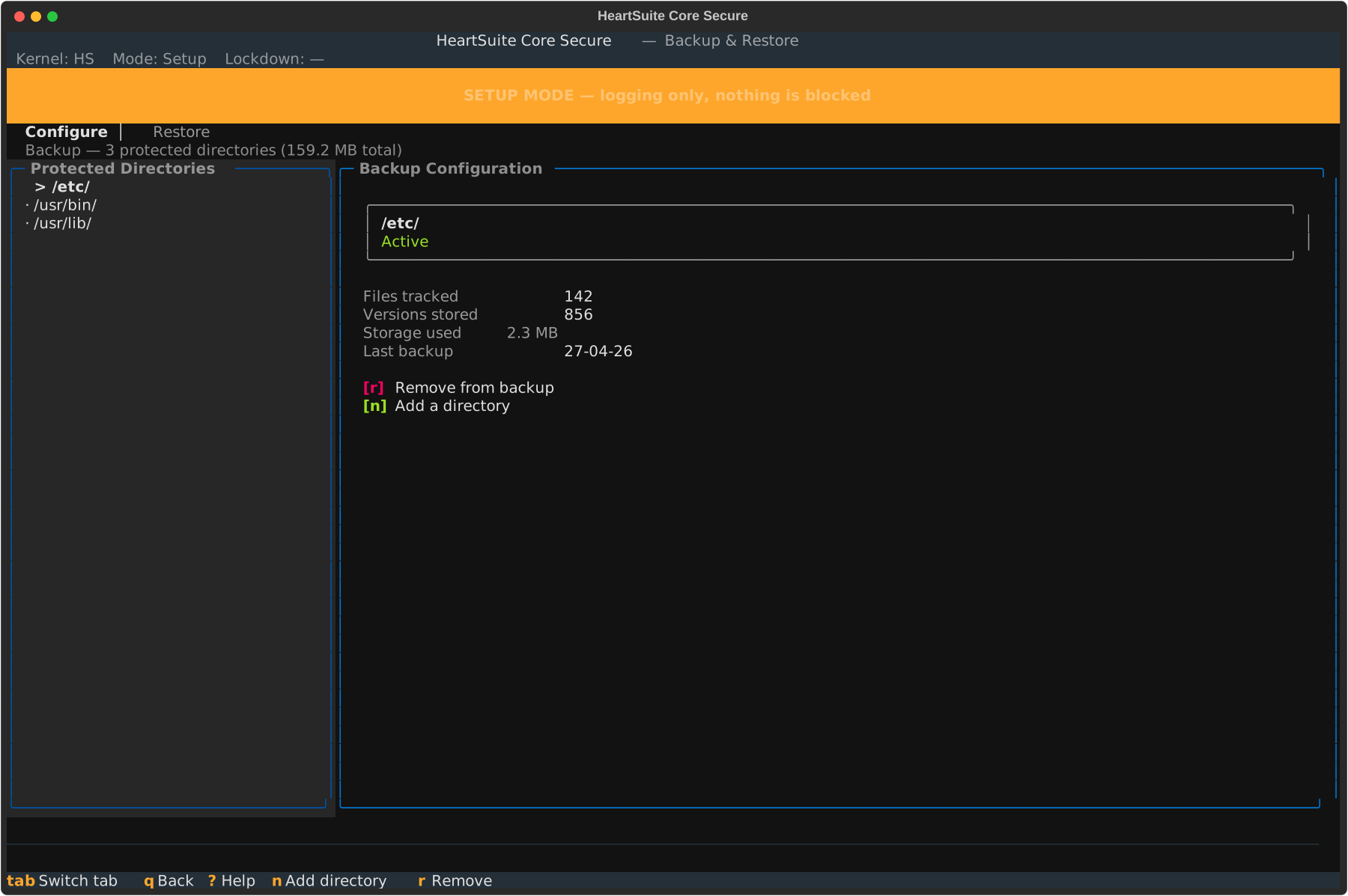
From here you can:
- Add directories (
[n]) — protect additional directories (e.g., /var/www, /etc, /usr/lib) - Remove directories (
[r]) — stop backing up a directory (removing a directory does not delete existing backups; existing versions are retained)
Recommended directories include those containing user documents, executable files, configuration, and shared libraries. Avoid high-churn directories like log directories — backup creates a new version on every write.
Note
Backup is optional. You can remove all directories, disabling backup entirely. Lockdown does not require backup to be configured.
Restoring file versions
If a file is compromised — for example, encrypted by ransomware — the Dashboard’s Backup lets you browse version history and restore any previous version of any file in a protected directory. The Backup offers two browse modes:
- File-first (
[f]) — navigate by directory and file, then view versions of the selected file - Timeline (
[t]) — navigate by date, showing all files modified on a given day
To restore a single file, select it and choose the version to restore. Each version shows its timestamp and file size.
For ransomware recovery where many files were modified on the same date, use the Timeline view ([t]), press [d] to filter by date, review the affected files, and press [b] to batch restore all of them in one operation.
Lockdown and backup
When Lockdown is active, the backup configuration file is sealed — no user or program, including root, can add or remove directories. This prevents an attacker who compromises a running process from silently disabling backup. To change the backup configuration, enter a maintenance period first (see Protecting During Maintenance).
Backup encryption
Root Lock by HeartSuite backup files are versioned filesystem copies. They are not encrypted at the HeartSuite layer. If your environment requires data-at-rest encryption — for example, to meet GDPR, HIPAA, or PCI DSS requirements — configure full-disk encryption (dm-crypt/LUKS) at the OS level. LUKS encryption covers the backup files automatically, since they reside on the same filesystem as the rest of the host.
CLI access for scripting and automation
For scripting and automation workflows that run without the Dashboard, the following CLI tools are available:
# hs-backup-config-manager add /var/www
# hs-backup-config-manager remove /home
# hs-backup-config-manager list
# hs-version-manager list /home/user/document.txt
# hs-version-manager restore /home/user/document.txt --version 2023-11-01
The Dashboard is the supported path for normal use.