SIEM and Fleet Integration
Connect Root Lock by HeartSuite to your existing SIEM, observability platforms, and incident management tools. The recommended scale path for teams managing many servers without per-host TUI toil.
Overview: In Lockdown, the kernel blocks any execution, file access, or network connection not on the allowlist — whether or not anyone is connected to the Dashboard. Without alerts, a blocked program fails silently. Alerts notify you of these blocks and of state changes the moment they happen. On a stable system with a complete allowlist, alerts are rare — most weeks you receive none at all. An alert means something genuinely unexpected happened.
Single-host setup is on this page (Dashboard → Alert Settings, Phase 6). For production fleets and compliance programmes, use the dedicated guides:
Alerts are a push channel for blocks and state changes that warrant immediate attention. They are not a secondary log stream and not a replacement for the Dashboard.
Alerts are suppressed entirely in Setup Mode. Setup Mode is a high-volume observation phase — logging everything without blocking. Alerting during this phase would produce constant noise before the allowlist is complete. Alerts become active only when Lockdown is active.
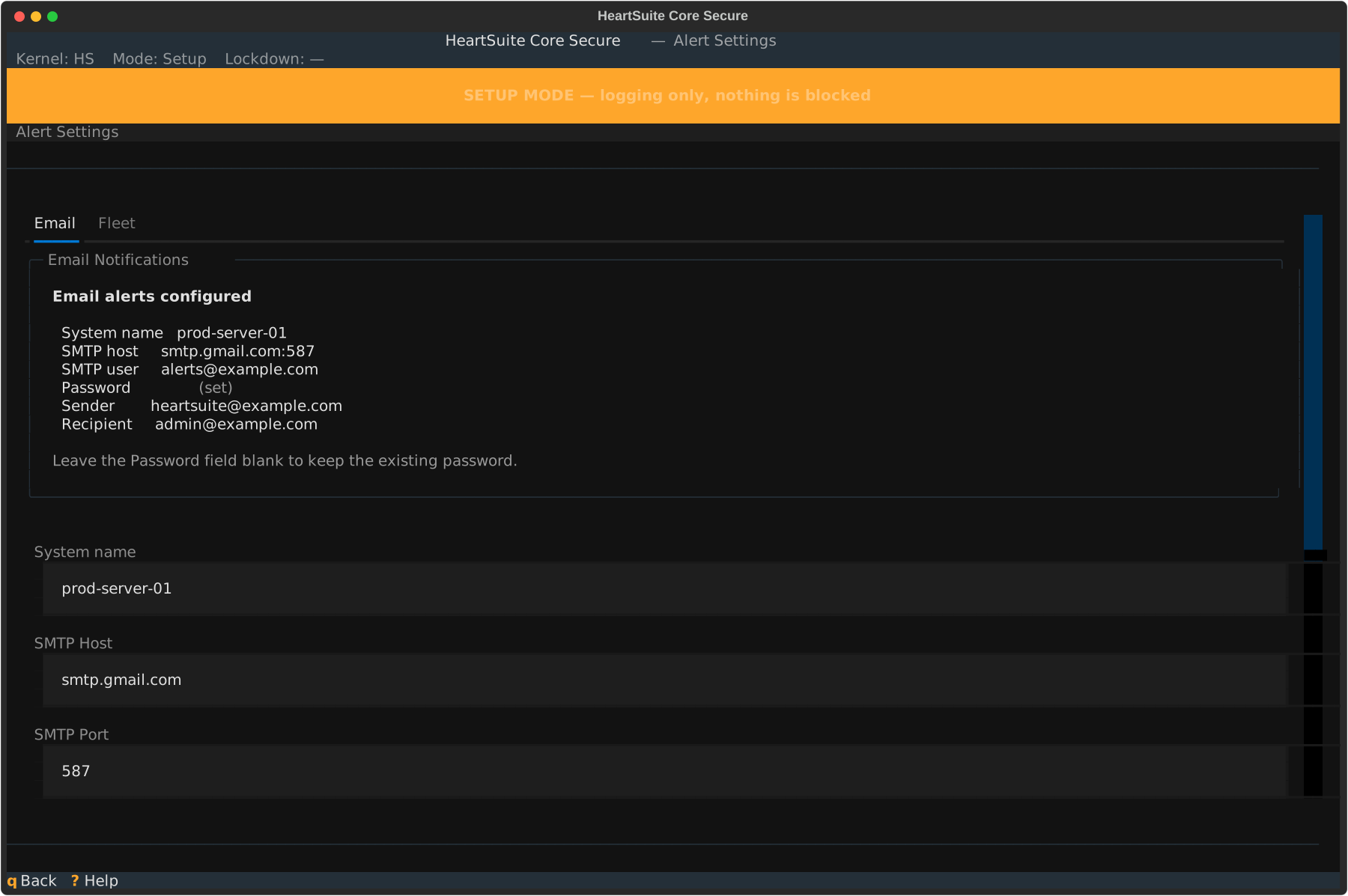
From the Dashboard, select Alert Settings ([e]). Alert Settings has two tabs: Email and Fleet.
Configure SMTP credentials to receive email alerts directly. Required fields:
prod-web-03) so email subjects immediately identify the source machine when managing multiple serversSelect Save to store the configuration. Root Lock by HeartSuite validates all fields but does not attempt a live connection at save time. Select Test to send a test email — this is the only moment where SMTP connectivity is verified. If the test fails, the exact SMTP error code is shown:
Test email failed: [535 Authentication credentials invalid]

Check your credentials and try again. No alerts have been sent.
Once configured, the tab shows current settings with the password displayed as (set). Select Edit to modify — the password field is always blank when editing. You must re-enter the password to prevent credentials from appearing in the terminal scroll buffer.
Configure syslog and webhook delivery for fleet and SIEM integrations. All channels are independent — enable any combination.
Syslog — A toggle (Enabled/Disabled). When enabled, Root Lock by HeartSuite writes all alerts to the system log via /dev/log, using the heartsuite-alert ident, LOG_AUTH facility, and LOG_WARNING severity. No additional configuration is needed on the Root Lock by HeartSuite node. After enabling, the Alert Settings provides an rsyslog forwarding rule example for your SIEM.
Verify syslog delivery with:
journalctl -t heartsuite-alert --since "1 minute ago"
To forward to a SIEM, configure an rsyslog output rule in /etc/rsyslog.d/heartsuite.conf. See the rsyslog omfwd forwarding module documentation for forwarding syntax, and your SIEM’s own documentation for the receiving end:
Webhook — Enter an HTTPS URL. Root Lock by HeartSuite POSTs a JSON payload to this URL on every alert. HTTP (non-TLS) URLs are rejected. Example payload:
{
  "node_id":    "prod-web-03",
  "event_type": "new_program_blocked",
  "timestamp":  "2026-03-31T14:22:00Z",
  "mode":       "Lockdown",
  "lockdown":   false,
  "paths":      ["/tmp/dropper", "/tmp/payload"],
  "count":      2
}
To receive this payload, create an integration in your incident management tool and paste the endpoint URL into the Webhook field:
Status JSON — A passive monitoring surface at ~/.cache/heartsuite/status.json, updated every 60 seconds. Ansible, Nagios, and Zabbix can read this file via SSH pull. No configuration required — always active when the alert daemon is running. This is read-only; it does not push notifications.
At fleet scale, syslog is the primary integration path: enable syslog on all nodes, forward via rsyslog to your SIEM, and alert centrally from the SIEM’s own rule engine. Webhook covers incident management tools (PagerDuty, OpsGenie). Status JSON covers Ansible health checks. Email is for single-machine deployments or as a supplementary channel.
For production examples (Filebeat/Elastic, rsyslog forwarding, webhook targets, verification commands) and the “scale path for larger teams” guidance, see the dedicated SIEM and Fleet Integration page. That page also covers using policy and posture data for tables of the current allowlist, risk signals, and posture views in Kibana/Elastic.
For using your existing central tooling (Ansible, Terraform, GitOps, ServiceNow, custom scripts) to own and apply allowlist policy at scale — with pre-seeding, harvest, and consumption of status.json / JSONL approval logs / syslog / webhook — see Central Policy Management and External Control. HeartSuite is designed to be driven by your control planes; the Dashboard is the single-host operator surface.
When Phase 6 is complete — at least one push channel configured — the Dashboard marks Phase 6 as complete and unlocks Phase 7 (Lockdown).
These alerts fire immediately on every configured channel, regardless of accumulation windows or digest mode:
| Alert | When it fires |
|---|---|
| Mode switch (Setup → Lockdown or Lockdown → Setup) | Immediately on mode change |
| Lockdown activated or deactivated | Immediately on state change |
| New allowlist file pushed while Lockdown is active | On detection |
These blocks apply a threshold filter and are active in Lockdown only:
| Block | Trigger condition |
|---|---|
| Previously unseen program blocked | A program path appears in the denial log that has never appeared in any prior log session |
| Network burst to new destinations | A single program generates blocked connections to previously unseen destinations within a 2-hour window |
| Critical file version created outside maintenance | A new backup version is created for a file under /etc/, /bin/, /usr/bin/, /sbin/, /lib/, or /usr/lib/ while in Lockdown with no maintenance window open |
Never alerted under any circumstances:
/tmp/, /var/tmp/, or /dev/shm/Blocks are grouped before delivery. A dropper that installs 40 payloads in 90 seconds produces one email — “40 previously unseen programs blocked in 90 seconds” — not 40 individual messages. Volume and velocity are the attack signal; 40 separate emails fragment that signal into noise.
Digest mode: If more than 3 block alerts are dispatched within a single hour, Root Lock by HeartSuite switches to digest mode for the remainder of that hour. All further blocks are queued and delivered as one digest email at the hour’s end. Administrative state changes are never held — Lockdown activations and state changes are always delivered immediately.
The 5-minute window and hourly cap are fixed, not user-configurable.
Syslog and webhook emit every alert immediately, without grouping or windowing. SIEM platforms (Splunk, Elastic) and incident management tools (PagerDuty, OpsGenie) apply their own correlation and deduplication — grouping alerts before they reach these systems removes information they need.
Alerts begin flowing only after Lockdown is activated. If a configured channel appears silent during Setup Mode, that is expected — not a misconfiguration.
With at least one push channel configured, Phase 6 is complete and the Dashboard unlocks Phase 7. Follow the Suggested Next Step to activate Lockdown (prep with per-panel actions/opt-outs before YES).
Connect Root Lock by HeartSuite to your existing SIEM, observability platforms, and incident management tools. The recommended scale path for teams managing many servers without per-host TUI toil.
Drive allowlist policy from your existing enterprise control planes (Ansible, Terraform, ServiceNow, and custom automation) and consume rich export data for central visibility and auditing at fleet scale. The recommended path for teams that own policy in their own tooling.
Was this page helpful?
Glad to hear it! Please tell us how we can improve.
Sorry to hear that. Please tell us how we can improve.