The Setup Journey
Overview: Root Lock by HeartSuite must complete a guided setup journey in Setup Mode before it can enforce security in Lockdown.
Why Setup Mode is necessary
Root Lock by HeartSuite enforces a default-deny policy: every program must be explicitly approved to execute, to access files, and to make network connections — including programs running as root. Immediately after installation, the allowlist is empty. If the system activated Lockdown at this point, it would block the programs required for boot and shutdown, rendering the system inoperable.
Setup Mode solves this problem. In Setup Mode, Root Lock by HeartSuite logs all activity without blocking anything. You review activity through the Dashboard queues, approve programs and their access, and build an allowlist that reflects the system’s actual workload. Once the allowlist is complete, you activate Lockdown.
Setup Mode is the default after installation. Root Lock by HeartSuite’s automated backup also operates during Setup Mode, capturing versions of protected directories so files can be restored even before Lockdown is active.
The 7 phases
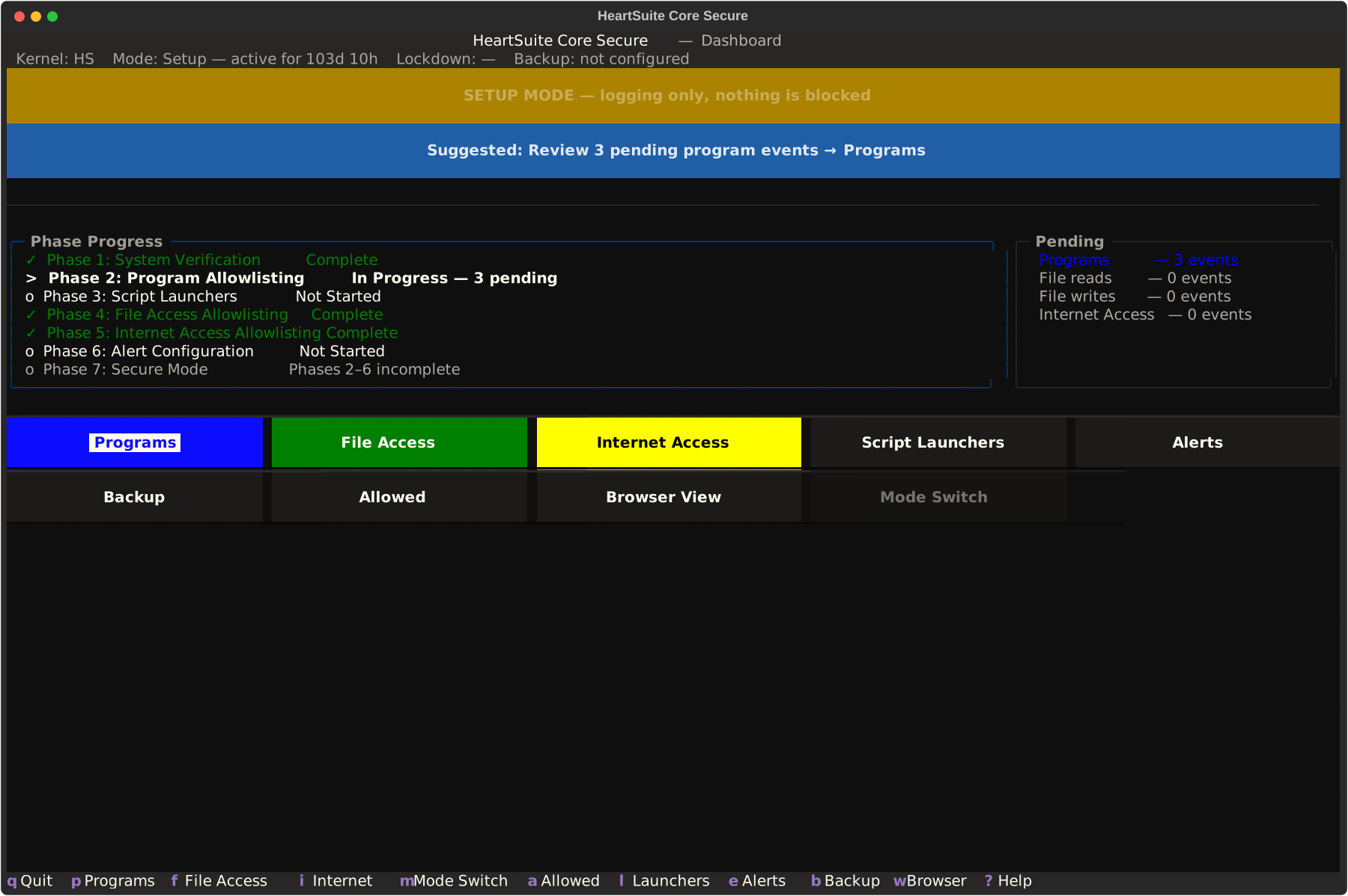
Root Lock by HeartSuite organizes the setup journey into seven phases. The Dashboard tracks progress through each phase and always displays a Suggested Next Step.
| Phase | Name | Description |
|---|---|---|
| 1 | System Verification | Confirms the Root Lock by HeartSuite kernel is active and the system is in Setup Mode. Auto-completes on Cloud instances. |
| 2 | Program Allowlisting | Review and approve programs detected during observation from the Dashboard’s Programs queue ([p]). |
| 3 | Script Launchers | Configure Secure Script Launchers for interpreted scripts from the Dashboard’s Launchers ([s]), if applicable. |
| 4 | File Access Allowlisting | Review and approve file reads and writes from the Dashboard’s File Access queue ([f]). |
| 5 | Internet Access Allowlisting | Review and approve internet connections from the Dashboard’s Internet Access queue ([i]). |
| 6 | Alert Settings | Configure at least one push channel (email, syslog, or webhook) from the Dashboard’s Alert Settings ([e]). |
| 7 | Lockdown | Locked until phases 2 through 6 are complete. Activate via the Dashboard’s Lockdown button ([l]): prep shows checklist + per-panel actions/opt-outs (e.g. [u] undo, [p]/[g]/[x]), inventory read-only, then type YES (case-sensitive). |
Cloud vs. Local Path
Cloud Path
Users who launch a pre-installed Root Lock by HeartSuite cloud instance (AWS AMI, GCP image) boot directly into Setup Mode. The Dashboard confirms Phase 1 is complete. The Dashboard appears on first login with the current system state and a Suggested Next Step. No manual verification is required.
Local Path
Users who install Root Lock by HeartSuite on bare-metal or custom VMs follow a longer path:
- Download and extract the installation package.
- Prepare GRUB and install the Root Lock by HeartSuite kernel.
- Root Lock by HeartSuite reads the startup and shutdown logs automatically, rebooting between passes until all startup and shutdown programs are in the allowlist.
- After Phase 1 is complete, the Dashboard appears and the journey merges with the Cloud path.
Both paths converge at the Dashboard after Phase 1. From that point forward, the workflow is identical.
From installation to Lockdown
The following diagram shows the path from installation to Lockdown, including the maintenance cycle.
graph TD
    A[Install Root Lock by HeartSuite] --> B{Cloud or Local?}
    B -- Cloud --> C[Boot instance — Dashboard confirms Phase 1 complete]
    B -- Local --> D["Boot setup runs automatically — reboots between passes"]
    D --> C
    C --> E[Dashboard appears — Suggested Next Step]
    E --> F["Phase 2: Programs queue — approve programs"]
    F --> G["Phase 3: Script Launchers — if applicable"]
    G --> H["Phase 4: File Access queue — approve file access"]
    H --> I["Phase 5: Internet Access queue — approve connections"]
    I --> J["Phase 6: Configure alerts"]
    J --> K["Phase 7: Activate Lockdown"]
    K --> L["[r] Reboot — Lockdown active on next boot"]
    L --> M{Maintenance needed?}
    M -- Yes --> N["Maintenance guides through steps"]
    N --> K
    M -- No --> O[System secured]
Activating Lockdown
Complete all allowlisting phases in Setup Mode before activating Lockdown. If boot and shutdown programs have not been approved, the system will fail to start or shut down correctly.
When phases 2 through 6 are complete, the Dashboard unlocks Phase 7. The Suggested Next Step will prompt you to activate Lockdown. Activating Lockdown requires typing YES (case-sensitive) to confirm and displays an allowlist summary and precondition checklist before proceeding. Before confirmation, the prep shown during Lockdown activation offers actions and opt-outs (e.g. [u] undo grants, [p] patch, [g] restrict tools from observed usage, [x] exclude — see Mode Switching and Lockdown for details). The inventory is read-only.
After activating Lockdown, the Dashboard offers one reboot option: [r] Reboot — Lockdown active on next boot. Lockdown is engaged automatically on every HeartSuite kernel boot.
Maintenance in Lockdown
To perform system maintenance after activating Lockdown, select Maintenance ([m]) from the Dashboard. The immutable seal is active by default — the Maintenance guides you through a 3-step process across two reboots: removing immutable flags on the maintenance kernel, making changes, then returning to the Root Lock by HeartSuite kernel to review new activity. The Dashboard resumes at the correct step after each reboot.
For full details, see Protecting During Maintenance.
Feedback
Was this page helpful?
Glad to hear it! Please tell us how we can improve.
Sorry to hear that. Please tell us how we can improve.