Protecting During Maintenance
Overview: Every maintenance window is an attack window — blocking is temporarily suspended, and anything an attacker can reach during that period is unprotected. Maintenance — such as installing packages, editing files, or applying updates — is the period during which you temporarily reduce Root Lock by HeartSuite’s protection to make changes. Grants can be narrowed at Lockdown activation time via per-panel actions/opt-outs on the prep shown before confirmation; the Dashboard’s Maintenance ([m]) guides you through the entire process, from safety preparation to re-engaging Lockdown (including restoring or re-approving as needed). The Maintenance appears only when the system is in Lockdown, Lockdown+sealed, or on the maintenance kernel — it is not shown in Setup Mode, because in Setup Mode you are already in the maintenance-ready state.
Most maintenance uses Option 1 below — a single reboot that stays on the Root Lock by HeartSuite kernel in Setup Mode. No GRUB interaction and no old kernel required. Option 2 (booting the maintenance kernel) is only needed when the immutable seal is active, which is the less common path.
Starting maintenance
From the Dashboard in Lockdown, select Maintenance ([m]). The Dashboard automatically detects whether the immutable seal is active and presents the correct path — you do not need to determine this yourself.
Safety checklist
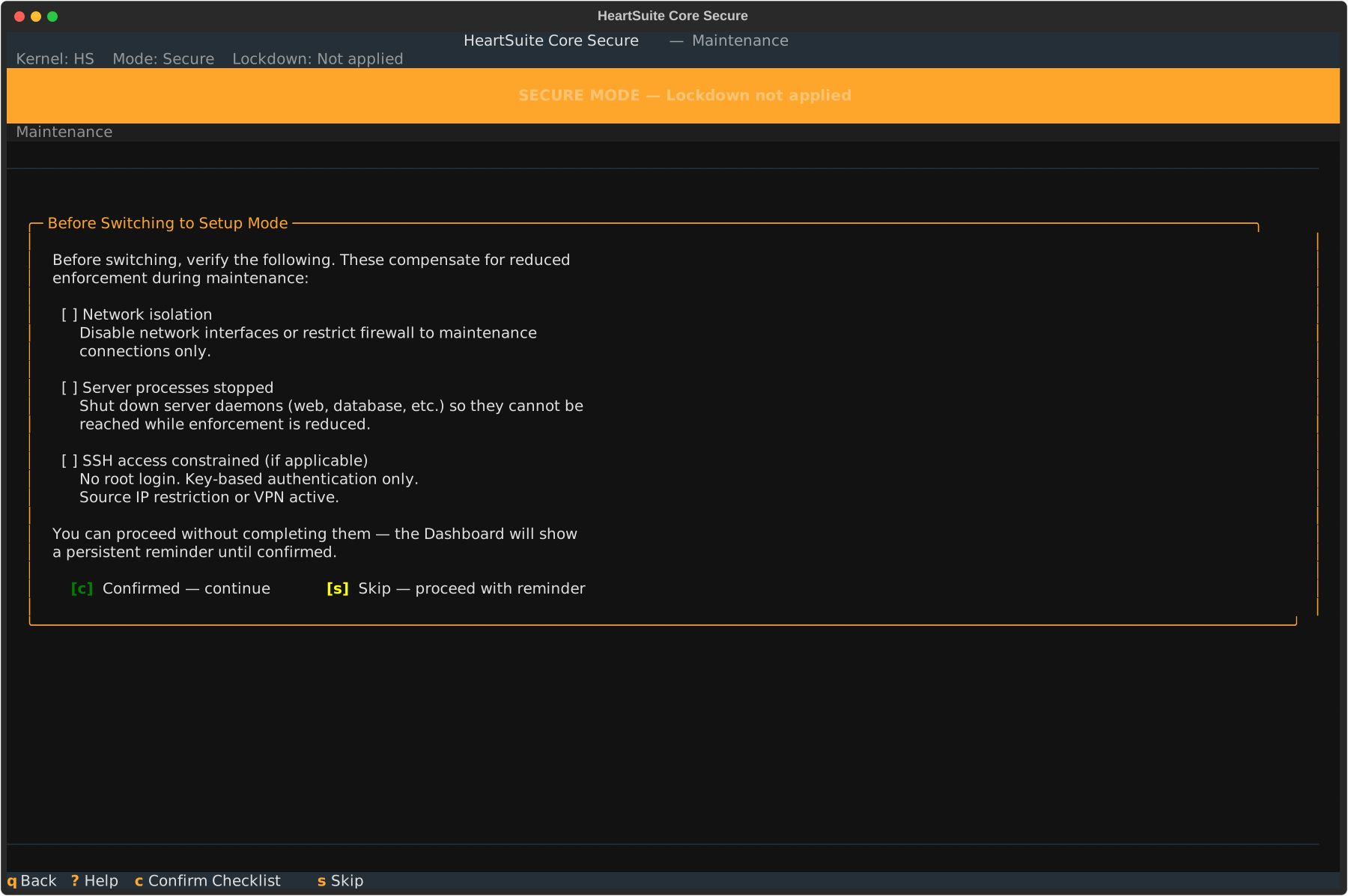
Before any mode change, Maintenance presents a safety checklist. The Dashboard auto-detects system state where possible and shows the status of each item:
- Network isolation — disable network interfaces or restrict firewall rules to prevent remote access during maintenance
- Server processes — shut down daemons (e.g., web servers) to close attack vectors
- SSH access — no root login, key-based auth only, source IP restriction
The Dashboard shows green checkmarks for items that pass and amber warnings for items that need attention. Press [c] Confirmed to proceed or [s] Skip to continue without completing the checklist. If you skip, the Dashboard displays a persistent reminder throughout the maintenance period — it does not disappear until you re-engage Lockdown.
The safety checklist is more critical for the Lockdown path (Option 2), where Root Lock by HeartSuite will be completely absent. For the standard path (Option 1), Root Lock by HeartSuite continues logging and running backups.
Option 1: switch to Setup Mode (no Lockdown)
This is the standard maintenance path. The Root Lock by HeartSuite kernel stays active. Logging and backups remain fully operational.
After completing the safety checklist, the Maintenance explains what will change:
- Root Lock by HeartSuite switches from blocking to logging only
- The Root Lock by HeartSuite kernel remains active
- Backups continue running
- The existing allowlist is preserved
- New activity is logged, not blocked — it will appear in the review queues when you re-engage Lockdown
Type YES (case-sensitive) to confirm the switch. The Dashboard reboots to apply the mode change.
After rebooting, the Dashboard shows Setup Mode is active with a Suggested Next Step. If the safety checklist was skipped, a persistent reminder appears. Make your changes — install packages, edit configuration, update software. Root Lock by HeartSuite logs all new activity silently.
When finished, re-engage Lockdown from the Dashboard. New activity from the maintenance period appears in the review queues. Review and approve them through the standard allowlisting flow before Lockdown resumes.
Option 2: boot the Non-HS Kernel (Lockdown active)
This path requires physical presence at the machine — a keyboard and monitor, a serial port, or your cloud provider’s serial console (AWS EC2 Serial Console, GCP Serial Console, Azure Serial Console, DigitalOcean Console). Confirm that access before you start.
When Lockdown is active, the Maintenance does not offer the Setup Mode switch. Instead, it explains the situation and guides you through a 3-step process. This is the most complex journey in the product — it involves two reboots, a kernel selection at GRUB where the Dashboard cannot guide you, and a period where Root Lock by HeartSuite is completely absent.
Step 1 of 3: boot Non-HS Kernel and remove immutable flags
After the safety checklist and typing YES to confirm, the Dashboard prepares you for the GRUB boot menu — the one moment where it cannot provide guidance. It shows the exact entry to select (Maintenance or vanilla Non-HS; do not select the branded HS / Root Lock by HeartSuite kernel). Press [r] to reboot.
The Dashboard saves your maintenance session state before rebooting. This state persists across reboots and kernel changes — the step counter (“Step X of 3”) follows you throughout the process.
After selecting the appropriate Non-HS / Maintenance entry from GRUB, the Dashboard resumes automatically on login. It detects the absence of the Root Lock by HeartSuite kernel module and adjusts its interface — actions that require the Root Lock by HeartSuite kernel are hidden entirely, not greyed out. The Dashboard shows:
- “maintenance kernel active. Root Lock by HeartSuite is not loaded.”
- “No blocking. No logging. No backups.”
- “Maintenance step 1 of 3: Remove immutable flags.”
Press [u] to remove the immutable flags set by Lockdown. After the flags are removed, the Dashboard presents the automatic Lockdown re-engagement choice:
[d]Disable automatic Lockdown re-engagement — the startup script will no longer apply Lockdown on boot. You can re-enable this later. This simplifies future maintenance.[k]Keep automatic re-engagement — Lockdown will re-apply on every Root Lock by HeartSuite kernel boot. Future maintenance will require this same process.
Both options carry equal weight — neither is recommended over the other. The choice depends on your operational needs.
If you accidentally select the wrong kernel at GRUB (the Root Lock by HeartSuite kernel instead of the maintenance kernel), the Dashboard detects this and guides you to reboot and select the correct kernel.
Step 2 of 3: make your changes
The Dashboard transitions to the maintenance workspace:
- “Maintenance step 2 of 3: Make your changes.”
- “You are on the maintenance kernel. Root Lock by HeartSuite is not active. Changes made now will not be logged.”
Make your changes — install software, update packages, modify configuration files. When finished, press [f] to prepare the return to the Root Lock by HeartSuite kernel. The Dashboard pre-configures Setup Mode for the next boot.
Step 3 of 3: boot Root Lock by HeartSuite kernel and review
Select the branded Root Lock by HeartSuite (HS) kernel from GRUB. The Dashboard appears automatically, showing Setup Mode is active and displaying the maintenance step counter. Software installed during maintenance may generate new entries — these appear in the review queues. Review and approve them, then re-engage Lockdown from the Dashboard. If the immutable seal was previously active and you kept automatic re-engagement, Lockdown will re-apply on the next reboot.
The maintenance kernel provides no Root Lock by HeartSuite protection whatsoever. The safety checklist is critical for this path.
Manual recovery outside the Maintenance
When Lockdown makes files immutable using chattr +i, those flags are stored at the filesystem level and persist across reboots — including reboots to the maintenance kernel. If you attempt to modify a file that was made immutable during a previous Lockdown session, you will encounter an error such as “could not open [u] Remove immutable flags handles this automatically during Step 1 of the Lockdown path. For recovery outside the Dashboard, run HS_unlock.sh.
Feedback
Was this page helpful?
Glad to hear it! Please tell us how we can improve.
Sorry to hear that. Please tell us how we can improve.