Troubleshooting and Logs
Overview: When something stops working on a locked-down system, the cause is usually one of three things: a missing allowlist entry, the system being in a different mode or on a different kernel than expected (Setup vs Lockdown, immutable seal active, or the maintenance kernel), or a kernel issue. The Dashboard tells you which one — the indicator at the top shows the current protection state, and the Suggested Next Step tells you what to do. The kernel log is available for advanced diagnostics when needed.
Where to start
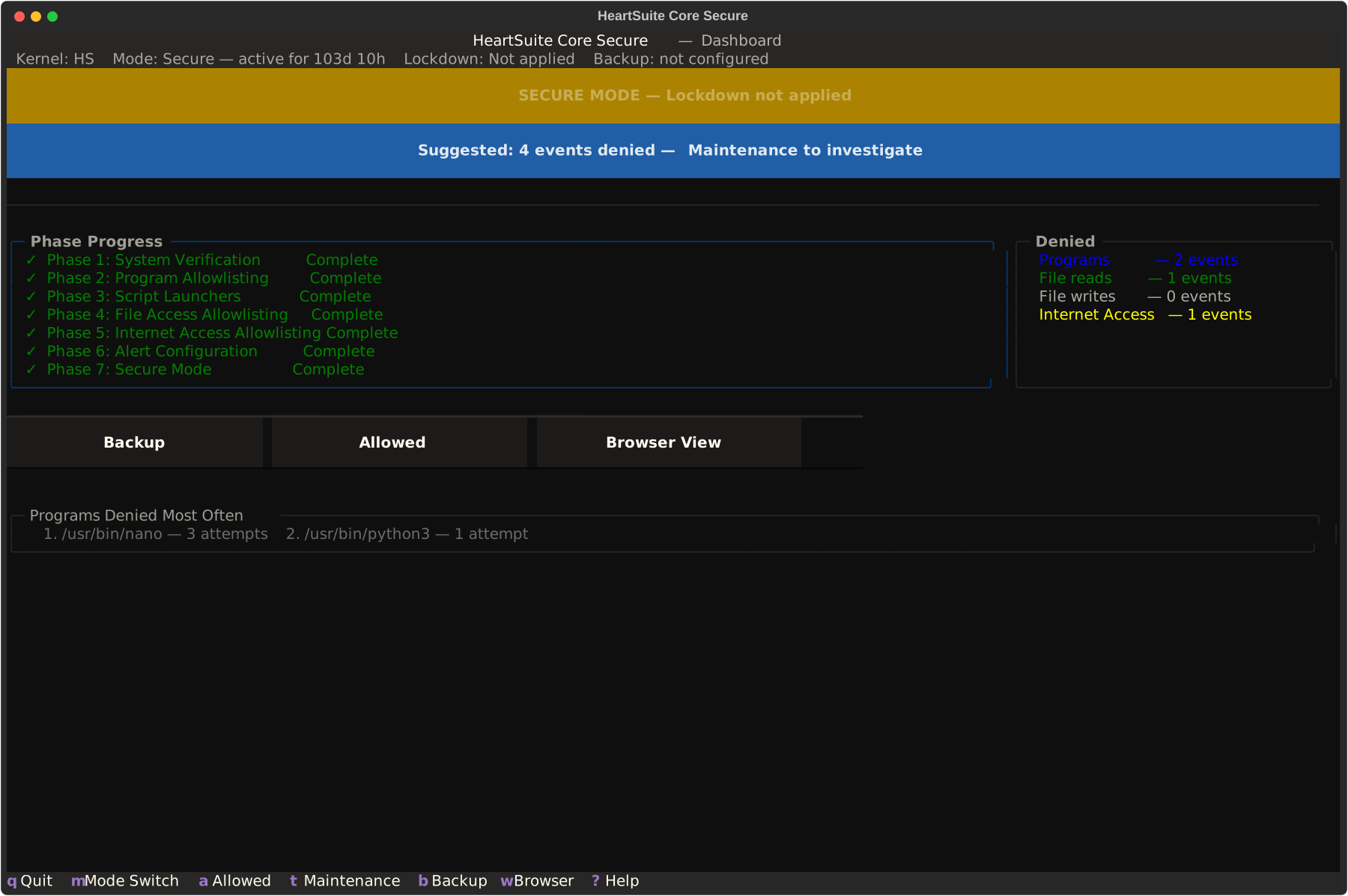
The Dashboard is the primary diagnostic tool. Before checking log files, review:
- Protection state (indicator at the top): Confirms the current protection level. If it shows “SETUP MODE”, “LOCKDOWN — immutable seal not applied”, or “maintenance kernel”, you immediately know what protection level is active. No indicator means Lockdown with immutable seal — full protection.
- Status line at the bottom: Shows the kernel indicator (“Root Lock” or “maintenance kernel”), current mode with uptime, and lockdown status.
- Pending/Denied counts: In Setup Mode, these are pending items awaiting approval. In Lockdown, these are denied actions that may need allowlisting.
- Suggested Next Step: Provides a single, actionable recommendation based on the current system state.
If you suspect a program is being blocked, check the Dashboard first. Denied items appear as counts on the Dashboard, grouped by category (Programs, File reads, File writes, Network). For example, if nano is blocked from executing, the Dashboard shows Programs: 1 denied and the Programs queue ([p]) presents it with full metadata for approval.
Log management
Root Lock by HeartSuite captures all activity and presents it through the Dashboard’s three review queues: Programs ([p]), File Access ([f]), and Internet Access ([i]). The Dashboard shows pending counts for each queue and groups items by category, so you always know what needs attention. The Maintenance ([m]) provides guided workflows for common maintenance tasks.
The review queues are how you see and resolve what needs attention. The underlying activity log is a temporary buffer — once all three review queues are empty, the Dashboard automatically clears the log on its next refresh. No manual action is required.
For compliance, SIEM integration, or long-term retention, Root Lock by HeartSuite also emits a per-decision enforcement stream and a separate alert stream over RFC 5424 syslog (plus a persistent JSONL approval log). See the dedicated SIEM and Fleet Integration page for configuration examples. Formal compliance evidence is covered in the SOC 2 and compliance reference documents.
Allow several days to a week of observation in Setup Mode. Systemd timers, cron jobs, and infrequent services appear in the review queues only when they run — the review queues accumulate these automatically.
Kernel log
The Dashboard’s review queues automatically collect entries from both the Root Lock by HeartSuite activity log and the kernel log. During normal operation, you do not need to read dmesg directly.
The kernel log is useful for advanced troubleshooting in three situations: a program fails but the Dashboard shows zero pending or denied items for it; the Root Lock by HeartSuite activity log has been cleared or rotated; or you need to correlate Root Lock by HeartSuite entries with other kernel messages:
dmesg | grep HEARTSUITE
The Dashboard presents the same information with metadata enrichment and grouping. The Dashboard is accessible on both the Root Lock by HeartSuite kernel and the maintenance kernel — on the maintenance kernel, the indicator at the top shows “maintenance kernel — Root Lock not active” and blocking is inactive.
Reporting issues
If you encounter a product bug, email support@heartsecsuite.com with your Root Lock by HeartSuite version, kernel version (uname -r), the protection state shown at the top of your Dashboard, and steps to reproduce. For documentation issues, use heartsuite-docs issues. For security vulnerabilities, email support@heartsecsuite.com — do not use public issue trackers.
Feedback
Was this page helpful?
Glad to hear it! Please tell us how we can improve.
Sorry to hear that. Please tell us how we can improve.